
Home > MacX HD Video Converter Pro for Windows > User Giude
MacX HD Video Converter Pro for windows is a full-featured video converter which is capable of converting among HD videos and SD videos. It will help you convert HD MKV, AVCHD, M2TS to iPhone, iPad, iPod, PSP, PS3, Android, Zen, etc. It owns full compatibility with most Windows popular video formats MKV, M2TS, AVCHD, MOV, MPEG, FLV, MP4, H.264, AVI, WMV, WTV, Google TV, Webm, Vpx 8. Moreover, MacX HD Video Converter Pro for Windows provides users flexible options to control output quality, size and speed by adjusting video/audio parameters, etc.
Q: How to convert HD video MKV, M2TS, AVCHD to the video formats playable on Apple devices?
A. You need a feature-rich video converter which supports converting all sorts of videos such as MKV, M2TS, AVCHD to MP4, QuickTime, iPhone, iPad, iTunes, iPod, etc. And MacX HD Video Converter Pro for Windows meets the demands in an all-round way with top quality, easiness and speed.
Step by step guide on how to use MacX HD Video Converter Pro for Windows.
Step 1. Download and install MacX HD Video Converter Pro for Windows.
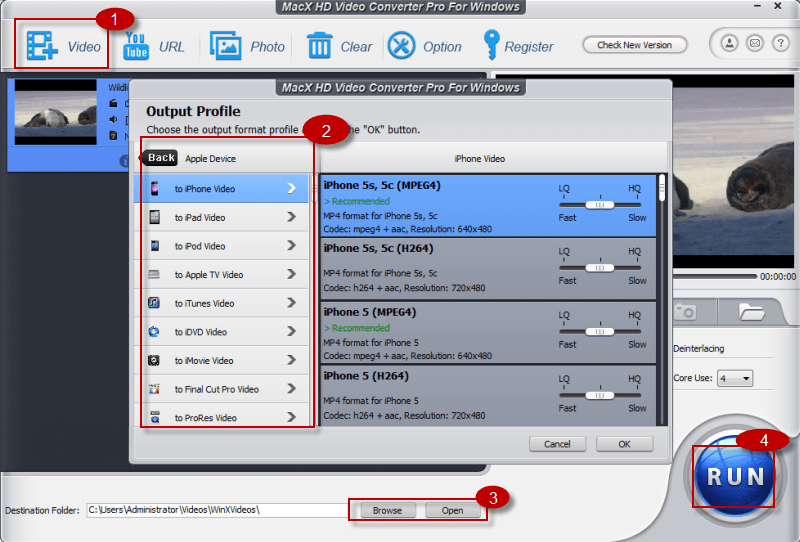
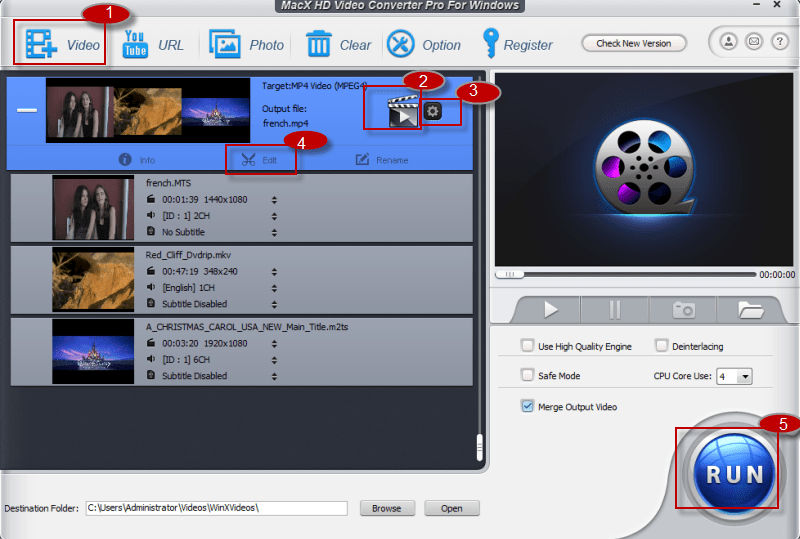
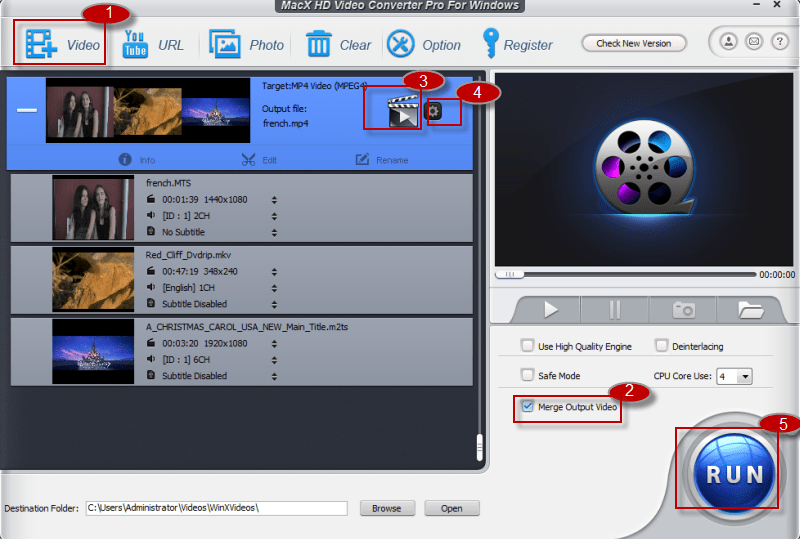
Step 2. Import your video file. Run MacX HD Video Converter Pro for Windows and import source video by clicking "Add" button. You can add more than one files at one time. For example, in this guide, the source videos are MKV and M2TS videos.
Step 3. Choose output format. If you want to convert MKV/M2TS to MOV/MP4/Youtube FLV, please select "to General Video" and you can find the specific output format. Or you may need convert MKV/M2TS to iPhone/iPad/iPod, please select "to Apple" first and related Apple devices are available under the category.
Step 4. Select profile as you need (optional). MacX HD Video Converter Pro for Windows offers presetting profiles in the "Profile Setting" area for iPhone, iPad, etc. Different profile stands for different video quality and output file size. You may keep the default profile or select another one as you need.
Step 5. Select output folder. Click "Browse" button in output setting area and select a destination folder to save your converted video.
Step 6. Start converting. Click "Start" button to start converting. You can view the conversion progress and cancel the converting process at anytime.

Q: Can MacX HD Video Converter Pro for Windows convert HD video AVCHD M2TS (Blu-ray video) and MKV TS to iTunes so that I can transfer to my iPhone iPad and iPhone 4?
A. Yes, sure. MacX HD Video Converter Pro for Windows is built in 420 different A/V codecs. It can not only convert H.264 MP4 to iPhone iPad, convert MPEG OGG FLV to iPhone ipad, convert SWF YouTube video to iPhone/iPhone4 iPad, but also convert Windows popular video AVI, MPG, Divx, Xvid, VOB, RM, RMVB and ASF, WMV, WTV to Mac OS iTunes, iPhone, iPad compatible MP4 H264 video.
What's more, MacX HD Video Converter Pro for Windows is a complete HD AVCHD M2TS and MKV to iPhone iPad video converter. It can easily convert 1080P and 720P AVCHD M2TS video file to iPhone iPad compatible MP4 H.264 videos.
Q. Does MacX HD Video Converter Pro for Windows support Google TV videos WebM and VPX 8?
A. Yes. MacX HD Video Converter Pro for Windows continuously updates to support the new video formats. Google TV is a new experience made for television that combines the TV. We have optimized our video converter to support converting GoogleTV WebM (Vpx8) to MP4, H.264, iPhone, iPad and iTunes.
Q. How long does it take to convert a 2-hour video to iPhone, iPad?
A. Less than 10 minutes on i5 CPU, 3G RAM, Win7. This depends on your system speed.
Q. How to transfer the converted video to iPhone/iPad/iPod/Apple TV?
A. Please launch iTunes, go to menu File > Add File to Library to import converted video from output folder into iTunes. Or just drag and drop the video into iTunes. Press the Sync button to load the target video to your Apple devices.
Q. Can I edit video file name for proper display on my iPhone/iPad/iPod/Apple TV?
A. MacX HD Video Converter Pro for Windows has a unique feature to make converted video display with proper file name on iPhone/iPad/iPod/Apple TV. To do this, please edit "Display Name" and "Artist Name" in the "File Setting" area.
Q. How can I make the video fit the full screen of iPhone/iPad/iPod without black line?
A.Please click the drop-down menu beside "Output Image Setting". Then choose "Stretch to Full Screen" so that you can play the converted video on iPhone/iPad/iPod without black line.
Q. How to convert if my source video has multiple audio language tracks?
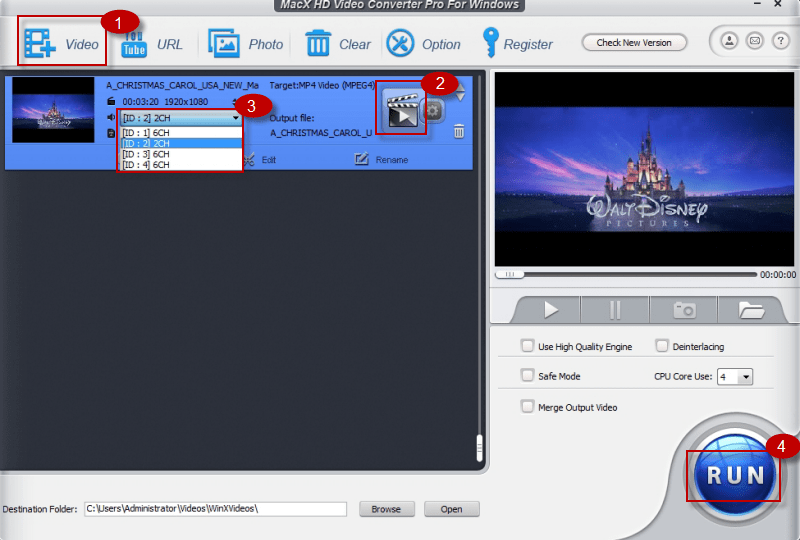
A. Multi-track HD video refers to a video file that contains multiple audio language track and video track. Usually, users choose their preferred language when watching movie videos. MacX HD Video Converter Pro for Windows works perfectly on converting Multi-track HD video M2TS, MKV, AVCHD, HDTV BDAV and MPEG-TS video movies and the operation is quite simple. After importing the source video, select the specific audio track as you need as the following image shows. Then the steps are the same as converting general videos.

Q: I can't play M2TS, MKV, AVCHD video on my Windows Media Player, can MacX HD Video Converter Pro for Windows help solve the problem?
A. Yes. Windows Media Player normally supports AVI, WMV and FLV video. If you want to play such videos on Windows Media Player, MacX HD Video Converter Pro for Windows brings you a convenient way to convert various videos to the file format compatible with your player. Generally, MacX HD Video Converter Pro for Windows is built in 420+ codecs and owns powerful compatibilities to convert all video files.
Q. I download a video from website but it seems to be corrupted. Is it possible that MacX HD Video Converter Pro for Windows convert and fix the corrupted video file?
A. Yes. MacX HD Video Converter Pro for Windows supports converting different videos to QuickTime compatible video formats. Besides, it is able to fix incorrect data automatically while converting, which makes it possible to convert even corrupted video files for smoothly playback on Windows Media Player.
Q. Is it possible to convert only a clip/segment of my video file?
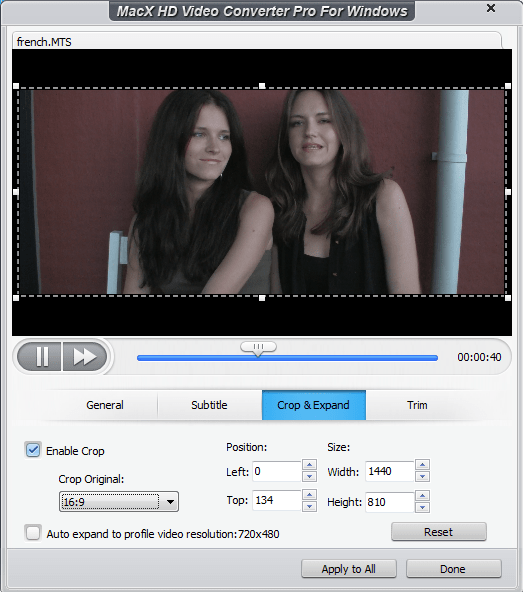
A. If you'd like to convert only a segment of the video, you can trim the clips by dragging the left or right bar under the video preview window or by defining the "Start Time" and "End Time" in the "Output Setting" area.
Q. How to extract background music from video file?
A. Import the source video file, and click "to Music" button. You will be able to extract the background music as MP3 music file.
Q. How to increase the output file sound volume?
A. Please drag the Volume slide bar in "Audio Setting' area and you can control the output sound volume.
Q. How to take a picture from video file?
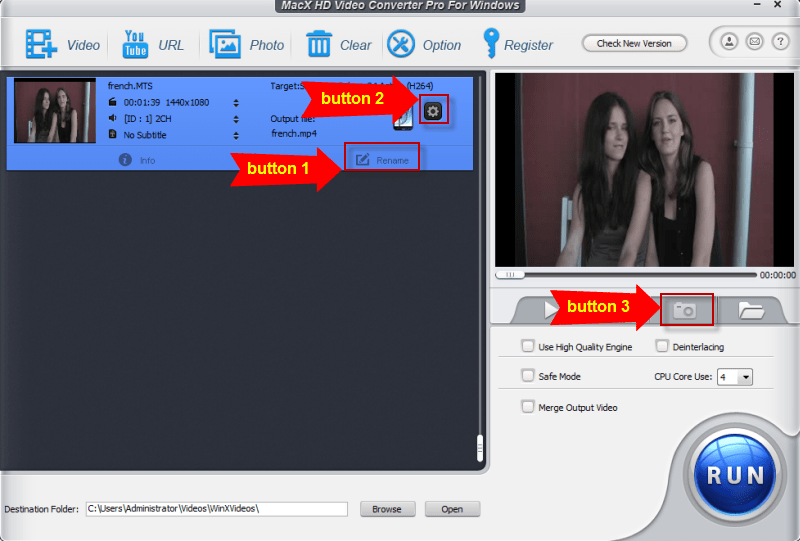
A. After you add the video file, you can set the start time to the point where you'd like to take a picture. Then click the Snapshot button under the preview window to save picture as JPG or BMP.
Q. What do "Output Image Setting" and "Video Resolution" mean? How to keep image aspect ratio?
A. You can adjust the video resolution to set the output image size. There are 3 choices available for general output video files:
1. Original Size and Keep Aspect Ratio. This option will output the original video image size (Automatically keep aspect ratio, and you can't adjust the width and height).
2. Custom Size and Keep Aspect Ratio (default setting). This option will let you adjust the image width, and the software will calculate the height to keep the video image aspect ratio as original.
3. Custom Size with Custom Aspect Ratio. This option will NOT calculate the width and height, so you can adjust the width and height. Maybe you will lose the image aspect ratio in the output file. Please calculate the aspect ratio by yourself.
Q. What's the "Video Quality"?
A. The "Video Quality" is namely the output file video bitrate. 1500 kbps is a good choice if you need a good image quality. Increasing the video quality will increase the output file size and image quality. Reducing the video quality will reduce the output file size and reduce the image quality. 1500 kbps will output a file size about 2GB with 3 hours movie (720x404 image size) with very good image quality.
What's more, MacX HD Video Converter Pro for Windows has two features which can help improve the output video quality. One is "Use High Quality Engine". And another one is "Deinterlacing". If your original video is interleaving video, select "Deinterlacing" and the Advanced De-interlace Accelerator can convert it to progressive scanning video with much clearer image.
Q. Can I create personalized profile for further usage?
A. Please click "Option" button on the upper navigation bar and select "Profile Setting". You can create personalized profile for devices by editing the video/audio parameters. Then change the "Profile Name" and click "Add". Finally, click "OK" to save the setting and quit.
After that, when you convert video for the specific device, you can find your personalized profile by clicking "Profile Setting" drop-down menu.
Q. What if the original file's audio is out of sync with video?
A. If your original file's audio is out of sync with video, please select "Force A/V Sync" and the built-in Intelligent A/V Synchronizer can help you solve the problem. Please do not use this feature if there is no such problem with your original file.
Q. Is there any way to make the converting speed faster and save more time?
A: Yes. There are quite a few factors influencing the duration of conversion:
1. The length and size of the original file.
2. Output file properties such as resolution, video quality.
3. Computer hardware level.
And there are some tips that may be useful for speeding up conversion:
1. The higher parameter the source video has, resolution, frame rate, etc, the longer it takes to convert the video.
2. Take full advantage of CPU Core use. MacX Vide Converter Pro supports up to 8 CPU Core which dramatically improves the video converting speed. Please set the "CPU Core Use" in "Advanced Setting" area.
Q. I can't play the video on my video player properly. Can your software help to solve this problem?
A: If your video player doesn't support playing video like MKV, M2TS, AVCHD, AVI, etc, you can use MacX HD Video Converter Pro for Windows to convert the video to the file format compatible with your video player. Moreover, MacX HD Video Converter Pro for Windows will automatically fix incorrect data of source video, such as the Video Aspect Ratio, to make the video smoothly playback on your video player.
Q. Does MacX HD Video Converter Pro for Windows support converting corrupted video files?
A. Yes, MacX HD Video Converter Pro for Windows supports automatically fixing incorrect video data. Even though your source video is corrupted, this software is able to convert the corrupted smoothly.
Q. How to compromise speed, size and quality for video converting?
A. MacX HD Video Converter Pro for Windows maintains the most perfect balance between speed, size and quality that you can ever find in similar products. However, you may have your own demands in video converting. The software brings users a convenient way to control video quality, namely bitrate, which is available in the "Video Setting" area. Generally speaking, the higher the bitrate is, the better the video quality will be.
Take converting video to iPhone for example. The resolution is 480:320.
1. Set the bitrate between 800 to 1000: If you just want to have a much smaller output file size and much faster converting speed without caring about the quality, this choice is the one for you.
2. Set the bitrate between 1000 and 1600: This is the most compromising choice if you want to have high video quality, small output file size and fast converting speed. 1024 kbps is the default bitrate setting for iPhone and iPhone 3GS (achieve the best balance between quality, speed and target file size). 1024 kbps is the default bitrate setting for iPhone and iPhone 3GS (achieve the best balance between quality, speed and target file size). For iPhone 4 the best bitrate (video quality) balance is 1300 kbps with resolution 960x640.
3. Set the bitrate between 1400 to 1800: If your concern is quality, this setting will provide you optimum video quality. But the file size will be accordingly bigger and it will take a little longer to finish the conversion.
I had the problem of converting some format. E-mail:support@macxdvd.comHome | About | Site Map | Privacy Policy | Affiliate | News | Contact Us
Copyright © 2011 Digiarty Software, Inc. All rights reserved.