According to our background data feedback, the downloads of MacX YouTube Downloader has reached millions, which occupies a significant proportion in our whole software downloads. Sincere thanks to our dear users, we can't make this great achievement without your guys trust and support. So we would do anything helpful for you as long as you need.
Recently, some users send Emails to us, asking various questions about the free YouTube downloader for Mac, covering the common user guide, product features and the detailed parameter selection. Considering some of you might know little about our free YouTube downloader for Mac, it's essential to write a detailed review to let you have an overall acquaintance about this freeware. The main advantages and disadvantages of the Mac video downloader are also illustrated here.
MacX YouTube Downloader Features
Focus on One Thing and do it Well: Download Video
- Download YouTube videos, Shorts, and playlists in MP4 and other popular formats.
- Save 4K/1080p videos, including 60fps and HDR content from 1000+ sites.
- Extract YouTube audio and save videos as MP3 or other common audio formats.
- Download available subtitles and preserve the original video quality and audio tracks.
- Batch-download multiple online videos or an entire playlist without processing them one by one.
System Requirements:
- Operating System: macOS 10.15 Catalina or later; Apple Silicon M1, M2, M3, and M4 chips are supported.
- Processor: Intel-based Mac computer (32-bit or 64-bit) MacBook Pro/Air/iMac
- RAM: 512MB RAM
- Free Hard Disk: 110MB free hard disk space for installation
- Graphic Card: Super VGA (800×600) resolution, 16-bit graphics card or higher
MacX YouTube Downloader Overview
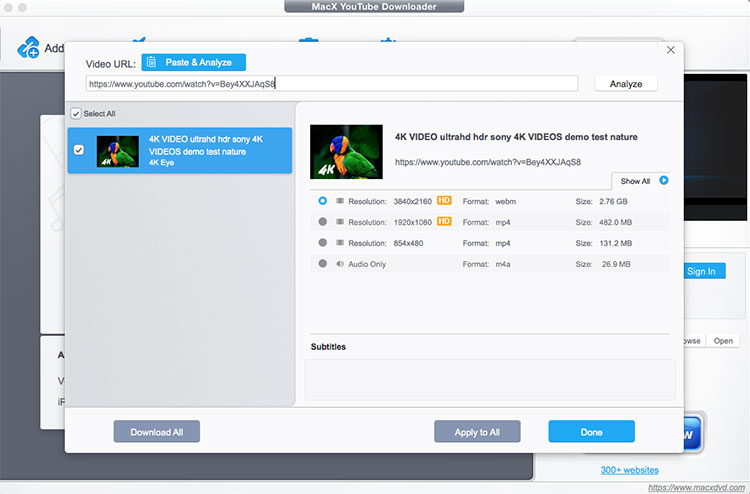
When you launch this free video downloader on Mac, you're greeted by a simple yet clean interface, no frills. And there is no annoying commercial ads popping up. Just the top icons on the menu draw your attention. Click the first icon, and you will enter the video download window. The second icon is used to clear finished video files if you don't plan save the downloaded videos. The next icon with a "trash can" is to remove all video sources. The fourth one has "Setting" feature, letting you choose preferred video format (e.g., MP4, WebM, FLV, 3GP), video resolution (Highest Definition, 2160p, 1080p, 720p, 480p, etc.), target folder, etc. Click the blue words and you will be directed to a webpage with all supported websites listed (1000+).
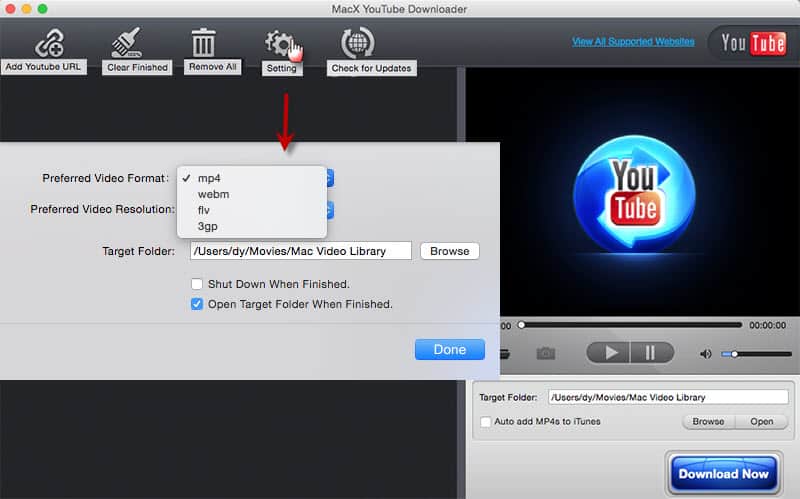
As for the options at the right corner of the bottom, you can make full use of them if you need. Hit "Play" button and the imported video will play in the small window for your preview. A sound slide bar is on the right side for you to adjust the volume. If you're disposed to take snapshots from video, the camera icon is born for that purpose and you can find all the pictures in the folder next to camera. Target Folder, I bet we know its function, so pass it here. You might feel curious about "Auto add MP4s to iTunes". Ok, actually, it's crafted to transfer MP4 video to iPhone iPad iOS devices for mobile device viewing. Have to admit it's a considerate design for iOS device users.
The supported video sites are quite extensive.
Free download video of whatever format and resolution.
Batch downloading video in fast speed.
Simple to use; professional supports to help you solve problems.
Unable to convert downloaded YouTube video.
Built-in video player is for downloaded video preview, not a truly video player.
No CPU/GPU hardware acceleration tech to speed up video downloading process.
MacX YouTube Downloader User Guide
Step 1. Paste YouTube Video URL
Click "Add Youtube URL" button to enter video download window. Then paste video URL to the analyze bar.
Step 2. Choose Video Format Resolution
Select the desired video format MP4 AVI MKV webm, resolution 720p, 1080p, 2160p, codec and file size.
Step 3. Click Download Now Button
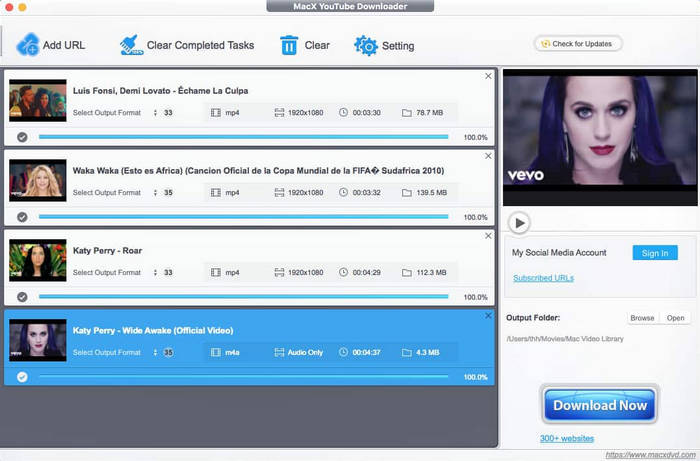
Hit "Download Now" and then this free YouTube downloader for Mac will begin to download video from YouTube, Vimeo, etc.
MacX YouTube Downloader Users Review
It is undeniable that MacX YouTube Downloader review should be made with different points of view and different angles. It can't be simply judged by its developer; more importantly, it should be rated by its users - you. Certainly, we can't collect all the users review and feedbacks here, so we just pick some users reviews. If you also wanna something to say about this Mac free YouTube video downloader, you're warmly welcomed to send E-mail to us.
I’ve been using MacX YouTube Downloader for years and have yet to find something better. It’s freeware, not super intuitive but once you get familiar with it, it’s great for what it does. It will download any video URL, not just from YouTube, you can change your download folder any time, can create long queues of files to download, and will download batches. - TonyAguila
MacX YouTube Downloader looks more professional than some of its rivals, but the interface isn't quite as clear as it could be. - techradar.com
MacX YouTube Downloader for Mac is one of the best youtube downloader that I have used for Mac. It surely supports downloading from many other video sites. - Basten Dome
In both libre and gratis sense, Macx YouTube Downloader is a brilliant mac video downloader. I'd like to use it to download YouTube videos esp 1080p HD,4K video. It's even more attractive than keepvid, because it supports batch downloading from lots of video sites. - Isabella
I appreciate any free app, so I like this application.it is good to download youtube videos. I said this app is cool not only it's fast, but also it supports to select resolution and get subtitles. - jamjacky
youtube downloader made by macxdvd performs video downloading job quite well. simple copy paste url, that's thoughtful. And the supported video sites are quite extensive. Nice app! - Jacob Ryan
How Does It Compare With Other Mac YouTube Downloaders?
A good feature list does not tell you how a downloader performs in real-world use. We compared this MacX YouTube Downloader with KeepVid, YTD Video Downloader for Mac, and iGetter for Mac, focusing on download quality, supported sites, ease of use, performance, audio extraction, and useful extras.
MacX YouTube Downloader |
Keepvid | YTD Video Downloader for Mac | iGetter for Mac | |
|---|---|---|---|---|
| License | Free |
Free |
Free |
Free |
Supported OS |
Mac OS X 10.5 - 10.15 |
Mac & Windows & Linux |
Mac OS X 10.6 - 10.12 |
Mac OS X 10.2 - 10.11 |
Video Download |
Yes |
Yes |
Video Only |
Yes |
4K 8K UHD Download |
Yes |
No. HD 720p is the maximum resolution |
No. It's unstable in 8K video downloading |
Yes |
Batch Download |
Yes |
No |
No |
Yes |
Supported Video Sites |
1000+ |
28 (among them, 6 sites need KeepVid Helper UserScript) |
48 |
Unclear, no specific number |
Ease of Use |
Yes | Yes |
Yes |
Yes |
Add MP4 to iTunes |
Yes |
No |
No |
No |
Video Conversion |
No |
No |
No |
No |
Screenshot Functionality |
Yes |
No |
No |
No |
Video Player |
Yes |
No |
No |
No |
Help & Support (FAQ, Email, Guide) |
Yes |
No |
No |
No |
Grounded on the comparison on the table, you can have a basic acquaintance with the listed free video downloader for Mac. Certainly, there is no enough room to introduce their features in detail in the table. In terms of the highlights of the above Mac video downloader freeware, the following part will give you a deep exposition.
MacX YouTube Downloader
Downloading video can't make the video software extraordinary. What makes it special and useful is its various video sites supported, including YouTube, Facebook, Dailymotion, Myspace, Metacafe, Instagram, Vimeo, Vevo, etc. Plus, not all the free YouTube downloaders support you to play video for a preview. This Mac video downloader freeware enables you to play any video and extract pictures from video as png format.
If there is any downside to this YouTube downloader app, it's that it can't convert downloaded video format. And in case you need the video conversion feature, you can consider its advanced version Macxvideo AI to convert video to MP4 MOV MKV AVI FLV, etc. 180+ video, 14+ audio and 350+ mobile devices.

Keepvid
Keepvid is easy use for anyone who is even a green hand to video downloader. Needless to download video downloader software or install any plug-ins, you just finish the video downloading process on the web browser. It's really nice and useful. Yet, where this free online video downloader falls down is that it can't download 4K video from YouTube in full video. 4K video downloading is available only when you ditch away the audio.

YTD Video Downloader for Mac
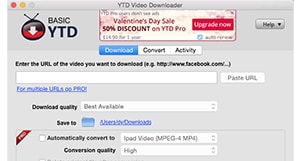
As a free YouTube video downloader freeware, YTD downloader for Mac is qualified. It can free download videos from YouTube, Vimeo, Facebook, Pornhub, etc. 48 sites. Yet, as you can see from the picture, this Mac video downloader is built-in with so many annoying ads, e.g., the Valentine's Day sale, YTD pro version, etc. And another point it needs to fix is its installation problem. I download this app from its official site and encounter 4 times failure on app installation, but eventually I download this dmg from donwload.cnet and successfully install it.
iGetter for Mac
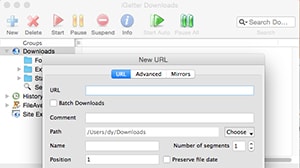
With 3.5 scores out of 5 on download.cnet, this video downloader for Mac free program is not so famous as the previous ones. It's true that it doesn't support as many as video sites as MacX YouTube Downloader or not simple as Keepvid. But what it's worth a mention is that it not only allows you to free download video from YouTube, but also download other files like dmg, zip, PDF from sites. And its Site Explorer expends your search to the entire website (http or https) and even FTP.
MacX YouTube Downloader Performance Test
Above comparison is based on the product features. Now we'd use the specific video downloading test to improve their video downloading speed and quality.
Note: This performance comparison test is finished on a 27" iMac with 2.7 GHz Intel Core i5, 8GB1333 MHZDDR3 and AMD Radeon HD 6770M 512 MB. You shall also have to note that your computer configuration has a significant impact on the video downloading speed. Higher config means faster speed. Please try to choose a comparatively powerful computer to download video if you don't wanna spend the better part of your weekend on online video downloading.
| Test Metric | MacX YouTube Downloader | KeepVid | YTD Video Downloader for Mac | iGetter for Mac |
|---|---|---|---|---|
| Test video | MP4 (H.264), 720p HD, 33.8 MB, 4:16 | |||
| Video quality | Excellent (no loss) | High | High | Clear, lossy |
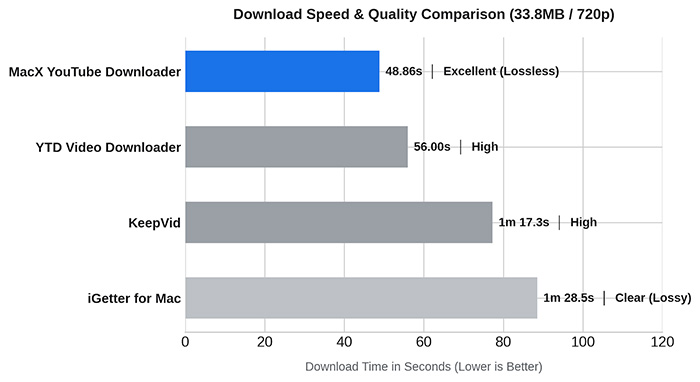
| Download time | 48.86 sec | 1 min 17.30 sec | 56 sec | 1 min 28.53 sec |
| Test environment | Web browser open; Excel running; Photoshop working in the background | |||
Test result: MacX YouTube Downloader completed the 33.8 MB download in 48.86 seconds, making it the fastest in this test. YTD Video Downloader followed at 56 seconds, while KeepVid and iGetter took longer.
Our speed test puts MacX YouTube Downloader ahead of the other options, although the difference should not be treated as a universal speed ranking. Download performance varies with Mac hardware, network conditions, and background activity. MacX made better use of the available CPU resources on our Intel Core i5 iMac, while KeepVid was more dependent on network conditions because it works as an online service.
Resolution support also affected the overall results. KeepVid could not download 4K video in our testing, while YTD Video Downloader for Mac did not support 8K downloads. MacX YouTube Downloader therefore has a broader advantage for high-resolution downloads, but whether that translates into faster real-world results depends on the video resolution, source server, network, and Mac configuration.
Read More: MacX YouTube Downloader Analysis Failed, Not Working
Notice: MacXDVD Software doesn't advocate any reproduce, distribute, transmit, broadcast or sell any content for any other purposes without prior written permission of YouTube or the respective licensors of the content. Please refer to YouTube terms of service before doing so.