Trying to download MakeMKV for Mac, only to be blocked by HTTP 525 server errors, expired beta keys, or macOS security warnings? You're not alone. While MakeMKV remains a popular choice for 1:1 DVD and Blu-ray backups, obtaining a clean installation on modern macOS (including Apple Silicon M1–M4) has become surprisingly frustrating. Here are verified, working download mirrors for MakeMKV Mac, quick fixes for Gatekeeper installation blocks.
MakeMKV Mac Alternative to Copy Protected DVDs to MP4/MKV
MakeMKV doesn't support all copy protections and only outputs MKV. To rip any protected DVD to more formats, try MacX DVD Ripper Pro. It will easily rip any DVDs (region codes, RCE, CSS, Disney X-project DRM, Lionsgate protection, UOPs, etc.) to MP4, H.264, MOV, AVI, WMV, etc. on Mac. Copy DVDs to MKV, ISO image, with 100% original data and quality.
Table of Contents
Where to Free Download MakeMKV for Mac Free Download
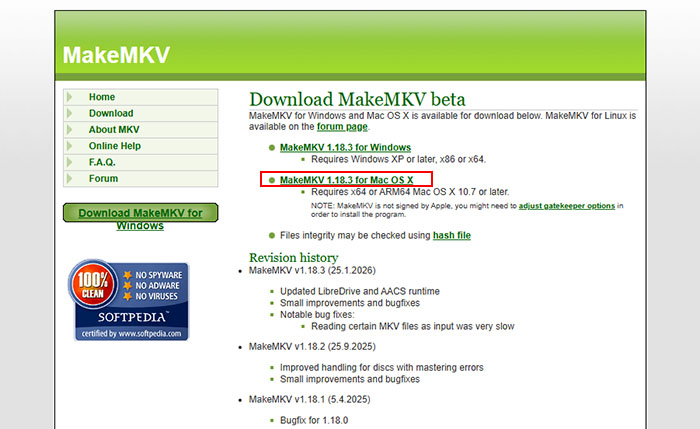
MakeMKV for Mac is available for download now. The latest version of MakeMKV is v1.18.4. MakeMKV 1.18.4 for Mac requires x64 or ARM64 macOS 10.7+ /ARM64 or later. To download MakeMKV for Mac, always use the official source to avoid outdated or modified versions.
The official MakeMKV for Mac download site: https://www.makemkv.com/download/
After downloading the installer, you may notice that macOS blocks the app on first launch because MakeMKV is not signed by Apple. This is normal on Ventura and newer systems, and you may need to adjust Gatekeeper settings to allow the installation. Once approved, you can install MakeMKV and start using it to rip DVDs and Blu-rays.
Note: MakeMKV no longer relies on the old direct access method on macOS. Instead, it works through macOS system-level drivers, which support most modern DVD and Blu-ray drives out of the box. These drives typically use the standard SCSI/MMC interface, which allows the system to communicate with the disc and read data normally.
In some edge cases, macOS may restrict access depending on the type of optical drive. If a drive is not recognized, it is usually due to system-level limitations, and switching to a supported external drive resolves the issue.
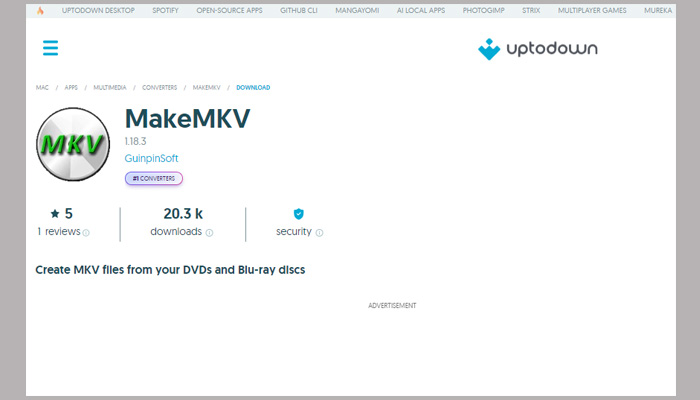
[Updated]: Due to intermittent Cloudflare SSL handshake issues (HTTP Error 525) on the official MakeMKV servers, the primary download page may occasionally be unreachable. If the main siteof MakeMKV/MakeMKV Mac download site is down, you can safely download the authentic MakeMKV for Mac package (DMG) through verified, scanned third-party mirrors or package managers:
- Official Download Mirror: Download MakeMKV for Mac on Uptodown
- Mac Package Manager (Homebrew): Run
brew install --cask makemkvdirectly in your Terminal.
MakeMKV for Mac Free License Keys [Updated]
MakeMKV allows you to convert DVD and AVCHD discs for free, as much as you want. But ability to convert Blu-ray discs is available only in the shareware. After the 30-days trial period, you need to purchase a registration key in order to convert a Blu-ray disc on Mac.
MakeMKV Mac free beta keys (check here for an updated license key for MakeMKV on Mac):
- T-vwvnrmF87JuRPLYYO8HnIrZR_LCAF7JXs9iJEm10moGpjEgkvmPTsf6Ox4BI@N5rPp
MakeMKV Mac free beta key is valid through the end of September 2026. We recommend checking back here for the latest key updates.
How to Use MakeMKV for Mac to Convert DVDs to MKV
After you download MakeMKV on Mac via the link above, double-click the dmg file and it will be automatically installed on your Mac. Next, you can use it to convert DVDs and Blu-ray discs to MKV. The overall process is quite simiple. Below is a guide on how to rip DVD to MKV on Mac using MakeMKV.
Note: make sure the hard drive on your Mac has enough free space. As MakeMKV will 1:1 copy the DVD/Blu-ray disc to MKV files, it means the output file will be quite large in size, especially for 4K Blu-ray discs (typical Blu-ray movie usually ranges from 15GB to 30GB in size, with 4K UHD Blu-rays being around 50GB or more).
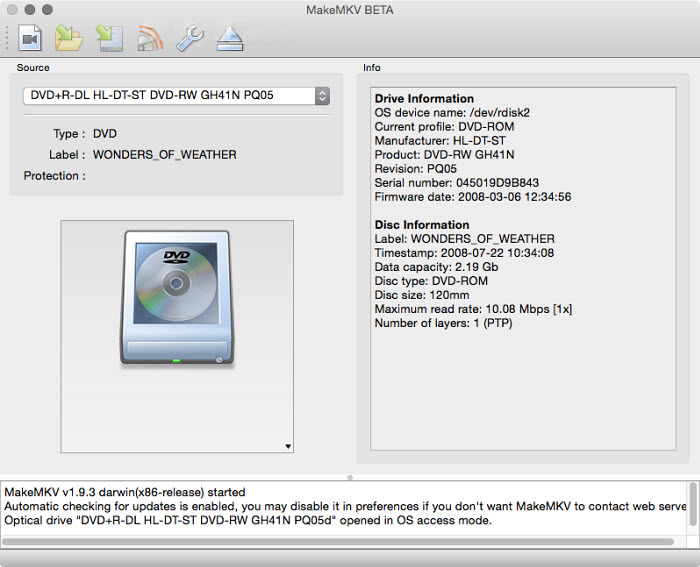
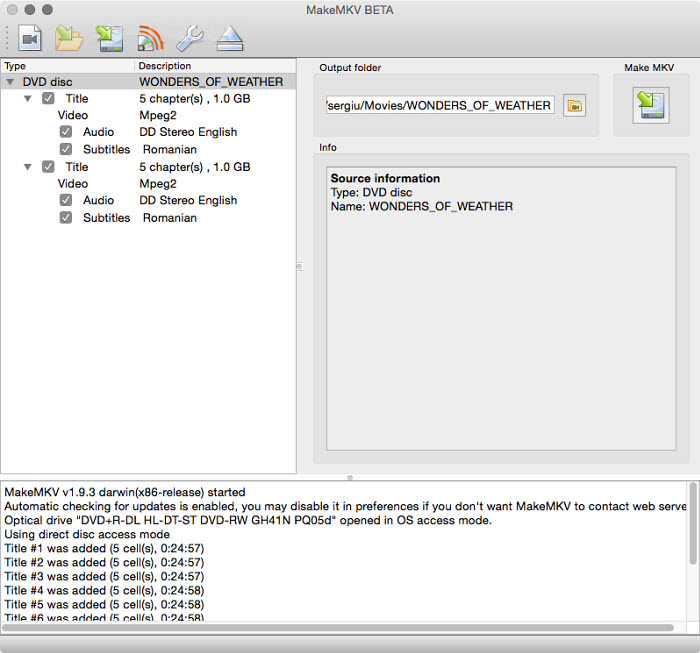
- Open the MakeMKV on your Mac and insert a DVD to the Mac's DVD drive. Click the optical drive button to load the DVD to MakeMKV.
- MakeMKV will then show the DVD contents as a tree structure. Select the titles you want to rip on the left pane. On the sub menu, you can choose subtitles, audio you want for the output MKV file.
- Choose output folder on the Mac to save the output DVD MKV video file.
- Click "Make MKV" icon on the right side to start the ripping process. MakeMKV for Mac will take about 15 minutes to convert a DVD to MKV.
MakeMKV for Mac Download Limitations & Installation Fixes
While MakeMKV is a popular choice for backing up physical media, users frequently encounter download blocks, macOS Gatekeeper errors, or output restrictions when installing and running MakeMKV for Mac. Understanding these hurdles can help you decide whether to troubleshoot or switch to a more streamlined Mac DVD ripper.
Key Limitations of MakeMKV for Mac
Before downloading and setting up MakeMKV on macOS, keep the following functional constraints in mind:
- Limited Output Format: MakeMKV for Mac only extracts video into uncompressed MKV files. If you need MP4, MOV, or direct device presets for iPhone or Apple TV, you must use a secondary video converter.
- Huge File Sizes: Because it retains all raw data without hardware compression, a single DVD backup can easily exceed 8GB–10GB, quickly consuming your Mac's SSD storage.
- No Compression Controls: MakeMKV does not allow users to adjust resolution, bitrate, or codec settings before ripping.
- Time-Limited Beta Keys: The free functionality relies on temporary beta keys published on their forum, which regularly expire and lock users out until updated.
Common MakeMKV Mac Download & Installation Errors (Fix Guide)
If you are struggling to download, install, or launch MakeMKV on macOS (including Apple Silicon M1/M2/M3/M4 models), use the following solutions to clear system permissions and installation errors:
-
"MakeMKV cannot be opened because it is from an unidentified developer"
Cause: macOS Gatekeeper blocking unverified third-party DMG packages.
Fix: Go to System Settings > Privacy & Security, scroll down to the Security section, and click "Open Anyway". Alternatively, right-click the MakeMKV app in your Applications folder and select Open. -
HTTP Error 525 / Download Server Unreachable
Cause: Cloudflare SSL handshake failures or server outages on the official MakeMKV site.
Fix: Use verified third-party software mirrors (like Uptodown) or install the package safely via Terminal using the Homebrew command:brew install --cask makemkv. -
"App is damaged and can’t be opened. You should move it to the Trash"
Cause: Quarantine flags added by macOS during the browser download process.
Fix: Open Terminal and run the command:sudo xattr -rd com.apple.quarantine /Applications/MakeMKV.appto manually remove the quarantine attribute. -
"MakeMKV would like access to files on a removable volume" / Permission Denied
Cause: Missing macOS Transparency, Consent, and Control (TCC) permissions for external optical drives.
Fix: Navigate to System Settings > Privacy & Security > Files and Folders, find MakeMKV, and enable access for "Removable Volumes". -
"Fatal Error Occurred" / App Crashes on Launch
Cause: Expired evaluation keys or corrupt local cache files from older Mac builds.
Fix: Clear the registration cache, download the newest MakeMKV DMG package, and insert the latest valid key from the official forum.
Download MakeMKV for Mac Alternative to Rip DVDs without Limits & Errors
MacX DVD Ripper Pro comes as best MakeMKV alternative for Mac to copy DVD without limits and DVDs/Blu-rays ripping errors. It can rip DVDs to MKV, HD MTS M2TS, MP4, MOV, H.264, WMV, AVI, iPhone, iPad, Apple TV, iMovie, QuickTime, and 350+ profiles. It offers original video image quality with 5x faster speed than MakeMKV. It supports nearly all the DVD encryption techs, be it Disney DRM, Region Code 1-6, Sony ArccOS, DVD CSS, to name a few.
How to Copy DVD on Mac with MakeMKV Alternative for Mac
The program has nice interface. It's quite simple to know how to rip DVD. Free download it on Mac, and open up the program.
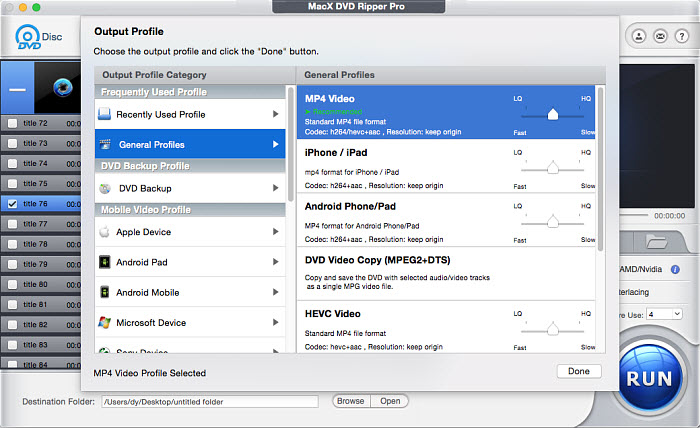
Step 1: Load DVD disc. Insert DVD disc and click "DVD Disc" icon on the main interface, the MakeMKV for Mac substitute will detect the DVD automatically and load it quickly.
Step 2: Select an output profile on the Output Profile windows and proceed to the next step. You can free copy DVD to MP4 Mac for MP4 is widely accepted by media player.
Step 3: Click "RUN" button to start to rip DVD on Mac. The MakeMKV alternative can use the GPU hardware such as Intel QSV, Nvidia, and MAD on your Mac to speed up the ripping process.
Notice: Before using it to rip commercial protected DVDs, you are suggested to copy DVDs under the concept of Fair Use. And any illegal reproduction or distribution of copyrighted content are forbidden. Please abide by the local DVD copyright law before doing it.


Bella has been working with DVD digitization for over 12 years. She writes articles about everything related to DVD, from disc drive, DVD copyright protection, physical structure, burning and backup tips. The unceasing passion of DVD movies helps him build a rich DVD library and ensure a practical solution to address almost all possible DVD issues. Bella is also a crazy fan for Apple products.