" Is there any way to get iTunes to play AVI video, or to encode AVI files that they are playable in iTunes while retaining the quality?"
"I have some AVI files stored on my Macbook, which I want to play them on my iPad Pro. Is anyone know how to import AVI into my iPad Pro?"
Say when you want to play AVI on iPhone, you need to first of all import avi to iTunes. Actually, Apple doesn't do that because AVI is not compatible with iTunes. Developed by Apple Inc., iTunes is a popular media player, media library, online radio broadcaster and mobile devices. It supports to replay any video files purchased or downloaded from iTunes store. iTunes supports video formats such as MOV, MP4 and M4V. Truly, these three video formats remain the same video quality because they adopt the same mpeg 4 lossy compression. About compatibility, M4V only can be played on devices or players from Apple family (iTunes, Apple iPhone, iPad, iPod, Apple TV, etc.) and MP4 or MOV is compatible with Mac, Windows platform and various Apple devices. You can choose one of them as the target video format to convert your source AVI videos to, when you need to add them to iTunes.
Free Download the Best AVI to iTunes Converter
MacX Video Converter Free Edition, actually an easy-to-use but powerful video converter for Mac. It not only can convert AVI to iTunes supported formats like mp4, mov, m4v, but also can encode other video formats including MPEG, MP4, MKV, MOV, FLV, RMVB, VOB, MTS, M2TS, MOD, H.264/AVC, HD TS, HD MOV, WMV HD, etc. Below is a step-by-step tutorial.
How to Convert AVI Video to iTunes on Mac Free
Step 1: Import Video
Free download this software (for PC users, go for the Windows version), and then launch it, drag and drop AVI files to the program. Or click "Add File" to locate the AVI files you want to convert.
Step 2: Select Output Format
After the AVI files are imported, choose "to iTunes" as output video format. The video/audio settings will be adjusted automatically according to the chosen device preset. You can also set your own parameters. You can also convert AVI to MP4 or MOV, M4V formats that iTunes supports well.
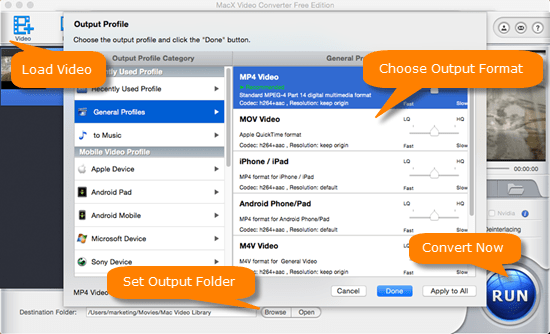
Step 3: Select Output Folder
Click "Browse" button in output setting area, select a destination folder to save the avi file, and then click "OK".
Step 4: Start AVI to iTunes Conversion
After all the settings, click "RUN" and begin to convert the video file from AVI to MP4 or MOV that iTunes can read. It also lets you to convert AVI to iMovie, AVI to QuickTime, AVI to Mac, etc. The whole conversion process will be finished in seconds to minutes based on the length of your avi file. You can hardly notice the quality differences in the output file for iTunes.
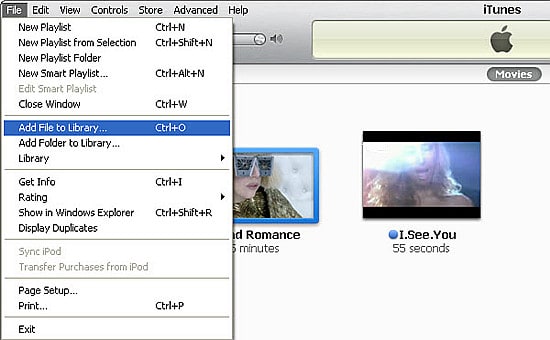
Step 5: Import Converted AVI file to iTunes
Simply drag and drop the converted avi video into iTunes and it will appear in the Movie section. Then you can play AVI videos on your iPhone/iPod/iPad after synching.
Convert AVI to iTunes on Windows Swiftly
How can you convert AVI on your Windows platform? Actually, nothing really difficult with the Windows-based video converter. Macxvideo AI for Windows gives you the same easy solution to complete the AVI converting task to iTunes. It is compatible with Windows 10 (32& 64 bit), Windows 8, Windows 7, Vista etc and is preconfigured with 400+ profiles setttings for Apple and Android devices.
Import AVI to iPhone/iPad without iTunes
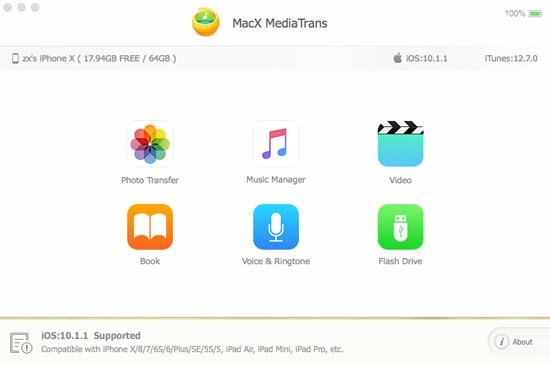
If you're going to add AVI videos to iPhone and iPad, there is another easier way for this job. Skip iTunes and import avi to iPhone iPad directly without the steps of format conversion and iTunes synching. For this purpose, you can use MacX MediaTrans. It will:
* Add movies, videos, music, photos, and more media from computer to iPhone, iPad or iPod by drag and drop and vice versa;
* Auto convert incompatible videos into iDevices supported formats when importing contents, like avi to iPhone iPad;
* Import AVI to iPhone iPad without iTunes, one click with extremely fast speed.
To skip avi to iTunes converting step: free download Mac version or Windows version


Candice's particularly skilled in writing and sharing video-related contents. Her guides cover from deep-seated video/audio parameters, to media entertainment on different platforms. She also enjoys shooting and processing videos by herself for a more reliable basis of informative info with her articles, which are never at the expense of eliminating an entertaining read.