










Why Hardware Acceleration Matters for Smooth 4K Video Processing
Say goodbye to crashes, freezes, stutters, and overheating for good.
Handling 4K video files is no small task — and while CPU acceleration does a decent job, it’s hardware acceleration that really cranks up the speed. Depending on your setup, it can boost video processing performance by two, three, or even more times, making those heavy video tasks far less painful.
GPU acceleration shines when it comes to demanding, data-heavy jobs like video encoding, decoding, and rendering. If your Mac runs on Apple Silicon (M1, M2, M3 series) or has an Intel® or AMD® GPU, you can tap into the power of hardware acceleration via Apple’s Metal API. It’s especially effective for formats like H.264, HEVC (H.265), ProRes, and VP9 — meaning faster, smoother, and more reliable video editing and exporting at high resolutions.
And let’s face it: 4K and 2160p videos are everywhere these days, popping up even more than classic 1080p. Without hardware acceleration, your video player is likely to crash, stutter, lag, freeze, or struggle to open those massive 4K H.264 and HEVC files.
The same headaches hit when dealing with bulky UHD recordings from GoPros, drones, dashboard cameras, and security monitors. These devices capture raw, high-bitrate video data — essentially a nonstop flood of visual signals. Without the extra muscle from hardware acceleration, your CPU can quickly get overwhelmed, slow down, or even risk damage under heavy load.
That’s why it pays to take advantage of hardware acceleration. Be it 4K movies, GoPro action shots, drone footage, surveillance video, or downloaded UHD content, it ensures a smoother, faster, and stress-free workflow.
Why is compressing 4K UHD videos so dependent on hardware acceleration? Here’s why:
- 4K video files are huge — with a resolution and clarity about four times greater than 1080p, they naturally take up much more storage space.
- The high bitrates mean massive amounts of data need to be processed during encoding and decoding.
- Many 4K videos run at up to 60 frames per second, especially for HDR content, which demands far more processing power than 30 fps footage.
- Most 4K videos use advanced compression formats like H.264 and H.265 (HEVC). While efficient, these codecs are tough on system resources. On older hardware without proper GPU decoding support, simply playing or converting an H.264 video can push your CPU to over 90% usage — causing slowdowns, stutters, or crashes, whether you're on Windows or macOS.
Lowering the bitrate with smart compression can help, but for truly smooth, efficient 4K video handling, hardware acceleration is your best bet.
Advantages of Hardware Acceleration for Video Processing
How Does Hardware Acceleration Assist Video Conversion?
Similar to video editing, GPU-based acceleration on macOS significantly improves the speed and smoothness of video conversion. With Apple’s Metal framework, it maximizes performance by offloading intensive decoding and encoding tasks from the CPU to the GPU. This not only reduces CPU load and power consumption but also enables the CPU and GPU to work together efficiently for optimal video processing performance.
As explained above, 4K and 8K UHD or other large video files, because of their gigantic volume of data, can fully embody the advantage of hardware acceleration:

1. GPU-accelerated video processing, supported by Apple’s Metal framework as well as Intel®, AMD®, and NVIDIA® technologies, can dramatically improve video compression and conversion speeds. On Mac devices, especially those with Apple Silicon (M1/M2/M3/M4 series) or compatible Intel®/AMD® GPUs, this acceleration ensures smoother video rendering and significantly faster decoding and encoding performance even on lower-end or older Macs.
2. By dividing intensive and repeated tasks to GPU, CPU has burden eased.
3. Your PC is spared to do multiple tasks, even CPU intensive tasks simultaneously.
4. The temperature of CPU can be maintained at a low and normal level without overheating and burnout of CPU. Your system will be more stable, and the service life of hardware will be prolonged.
What Make MacX Faster and Different? – Level-3 Hardware Acceleration!
So far, hardware acceleration has been utilized in many mainstream video converters. But 99% of them just end up with the regular routine of:
Source video -> HWDec -> YUV -> HWEnc -> target video
What Macxvideo AI applies is the unique Level-3 Hardware Acceleration that is much more sophisticated and intelligent. Please see the workflow in the following diagram:
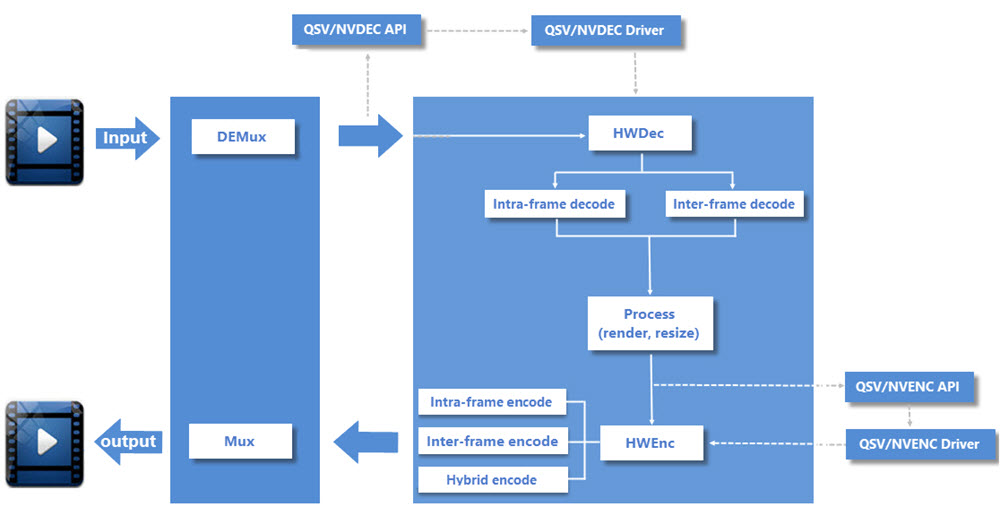
Simply put, the whole hardware-accelerated conversion process of Macxvideo AI goes roughly like this: Source video -> HWDec -> YUV -> hardware processing -> HWEnc -> target video. Comparatively, it has one more step, i.e., video processing, which should not be overlooked: Not only rendering, resizing (compressing/upscaling/downscaling) as demonstrated are involved in, but also video editing like Deinterlacing, color conversion, inverse telecine, de-noising, scene detection, simple frame rate conversion, video configuration and so on are parts of it.
It is common knowledge that video conversion relates to lossy compression; if not, the output video file will be extremely large, and the processing will be at a snail's pace. Those who purport to provide zero quality loss in video compression are all drawing the longbow. But the hardware processing by MacX's converter software successfully minimizes loss in image quality, none but pixel-level differences which cannot be noticed by human eyes at all, thanks to not only the workflow illustrated, but also
1. Inter Prediction + Intra Prediction before video decoding: Inter Frame Prediction is possible to take advantage from temporal redundancy between adjacent frames to enable higher compression rates; Intra Frame Prediction exploits spatial redundancy of hue, brightness, etc, conducts Transform Coding of the predicted redundancy. It can remove neighboring spatial redundancy to get more efficient compression.
2. I-P-B Frames (Inter-frame Compression + Intra-frame Compression): Imagine Intra-frame compression compresses a picture directly. If two neighboring frames are similar, most of their data are the same, inter-frame compression only stores the different parts between frames, so large data volume is spared. Macxvideo AI alternates one intra-frame compression and multiple inter-frame compressions and making good use of I-frames, P-frames and B-frames. This encoding method makes video resizing have large compression ratio and no distortion.
3. Entropy Encoding and Hybrid Encoding: During HWEnc process, Entropy Encoding, which can be considered as one kind of intra-frame encoding, is utilized to avoid losing any information according to entropy principle. Hybrid Encoding combines Transform Coding with Predictive Coding, compresses spatial redundancy using DCT and so on, and compresses temporal redundancy using Intra Prediction or Motion Compensated Prediction to achieve high compression ratio of motion pictures.
4. Sample Adaptive Offset in HEVC standard for 4K videos: It reduces distortion by classifying reconstructed images into categories after deblocking in video editing/processing, within in-loop of codec. Compression ratio can be improved and code rate can be reduced.
Hardware acceleration itself will not lower video quality while speeding up the video decoding and encoding process. And with the technologies above, video processing will keep quality loss at a minimum. The resizing step can reduce the output file size without causing problems like jerky videos, blurred screens, video audio asynchronization.
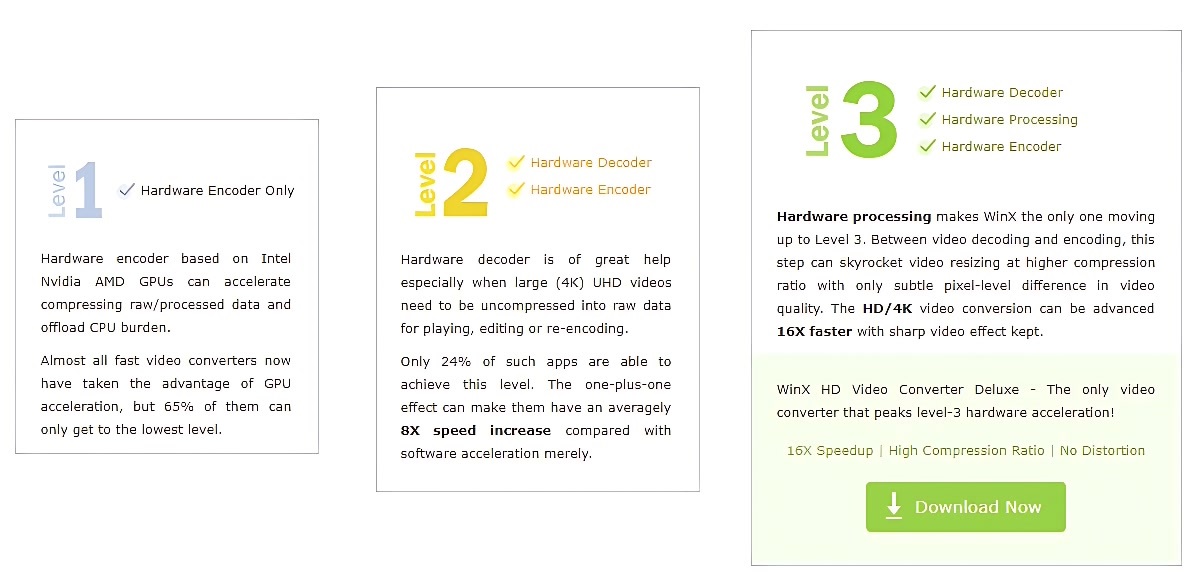
Macxvideo AI defeats 99% video converters in the support for hardware acceleration. Let's see why:
Level-3 Hardware Acceleration Carries Huge Weight in Fast 4K Video Processing
Compared with 720P and 1080P, 4K can show us more details and sharper quality through ultra high resolution - 3840 x 2160 (8.3 megapixels) or 4096 x 2160 (8.8 megapixels). Nowadays, 4K videos can be shoot by a professional and big-ticket camera, such as Canon EOS C500 4K Cinema Camera (EF Lens Mount), and also a smartphone that everyone is able to afford. Generally, 4K content is encoded with H.264 (AVC), H.265 (HEVC), VP9, or XAVC and wrapped in MP4, MKV, M2TS, AVCHD, MXF, or WebM container. Among those formats, some are widely accepted while others aren't. When playing/editing a 4K video with incompatible format, say HEVC, you can only hear audio or get nothing but an error. To fix this, you need to install additional codec or convert 4K video.
4K video conversion has a strong need for Intel/NVIDIA/AMD hardware acceleration technology to guarantee trouble-free operation, reduce CPU usage and most importantly speed up transcoding. As mentioned above, hardware acceleration is classified into 3 levels. As shown in the following examples, the higher the level, the faster the speed.
| Example 1: Convert a 4K (3840x2160) 30 fps video from H.264 to HEVC without changing resolution on i9-13900H 5.4GHz. | |||
| Hardware acceleration level | Level-1 (with NVIDIA NVENC hardware encoder) | Level-2 (with Intel Quick Sync decoder and NVENC encoder) | |
| How many times faster than software-based processing | 6X | 8X | |
| Example 2: Compress a 4K H.264 (3840x2160) 30 fps video to HD H.264 (1920x1080) on i7-12700H 4.70GHz. | |||
| Hardware acceleration level | Level-1 (with Nvidia NVENC encoder) | Level-2 (with Intel Quick Sync encoder/decoder, no HW processing) | Level-3 (with Intel Quick Sync encoder/decoder, and HW processing) |
| How many times faster than software-based processing | 3X | 4X | 6X |

Apart from being integrated into video converter, hardware acceleration technology is also applied to some media player programs such as VLC and 5KPlayer, thereby utilizing GPU to tackle the massive data in 4K and unburdening CPU.
Household VLC introduced the support for 4K with the release of version 2.1 built in 2013. Despite that, choppy, stutter, lag and the like are quite common, even if the computer isn't poorly configured. The situation gets improved somewhat after VLC updates to 3.0 which activates hardware decoding by default.
5KPlayer - supporting 4K resolution from birth - is much younger than VLC, but match up to VLC. It keeps improving the effectiveness of 4K UHD video playback and adds DXVA 2, Intel QSV, NVIDIA (CUDA) hardware acceleration technologies successively to cut down CPU consumption and assist 4K video playback.
Clearly, smooth 4K video playback is definitely not an easy thing, because of the huge data that 4K owns. The amount of data per frame can reach 50MB. Thus, only high-end hardware and powerful software can deal with 4K videos. If they are not well prepared, then we have to convert or compress the UHD content and meanwhile enable hardware acceleration to make things easier and quicker.
Top FAQs on 4K UHD Video
1. How do I fix choppy/stuttering/lagging 4K video playback in VLC?
Method 1: Enable hardware acceleration on VLC: Tools -> Preferences -> Interface -> Input/Codecs tab -> choose Automatic for Hardware-accelerated decoding or check Use GPU accelerated decoding.
Method 2: Compress 4K Videos to Smaller Size without Quality Loss on Mac.
2. Why can't I play 4K videos on my laptop?
Firstly, check if your computer meets the minimum requirements for 4K playback.
Secondly, make sure your player is compatible with the resolution and codecs in 4K.
3. Why is there only audio playback (no video) when I watch a 4K HEVC video?
It is probably because HEVC video codec isn't compatible with your player. You can either install codec or convert HEVC to H.264 or other recognizable one.
4. Why so much CPU is used when processing 4K?
Here're several reasons: your GPU doesn't support 4K hardware decoding; the software you use doesn't support or enable hardware acceleration; your computer is too legacy to handle huge 4K data; the program is CPU-intensive; there're other applications running in the background.
Level-3 Hardware Acceleration Magnifies GoPro 4K Video Processing Efficiency

GoPro action cameras unleash the power to shoot fantastic footage of normal, slow-motion, time-lapse in high definition. Former generations use H.264 as the primary format for 1080P/2.7K/4K digital recordings. Newer models offer native support of HEVC (H.265) to further compress the size of 4K video at the same level of quality as well as producing high frame rate video clips with enhanced image smoothness.
GoPro helps film stunning works of travel/sports, but how about its video playback and post production? GoPro develops Quik for desktop to play, edit and share footages with ease. Simplified solutions are provided but troubles arrive as well.
1. Playback
Complaints about choppy playback in Quik often appear in user communities. In fact, playback performance is closely tied to hardware capability. For smooth 4K and HEVC playback on macOS, it’s recommended to use Apple Silicon (M1/M2/M3/M4 series) devices or Intel® Macs with at least Intel HD Graphics 6000 or later.
Even on capable machines, playback issues can persist when handling heavy workloads or multitasking. Quik and other apps can utilize the GPU through Apple’s Metal framework to offload video decoding tasks from the CPU for better performance. However, to view HEVC smoothly, the GPU must support hardware-accelerated HEVC decoding, whether in Quik or other media players. If the device lacks this capability, users might need to convert GoPro HEVC videos to H.264 to ensure proper playback.

2. Editing
Lags often occur when editing GoPro videos with Quik on underpowered computers. On macOS, especially Intel-based Macs without hardware video decoding support, performance issues can be even more obvious. Hardware-accelerated video decoding is crucial for smoothly editing high-definition footage with effects, transitions, and background music. Apple Silicon (M1, M2, M3 series) with integrated video decoders, combined with the Metal framework, ensures efficient, seamless editing and playback of high-resolution videos.
3. Enhancement
Your action or sports videos might suffer from choppy playback or poor quality due to unstable recording or low-light conditions. In such cases, stabilizing and enhancing GoPro footage is essential. This process can take from minutes to several hours depending on file size and system performance.
On macOS, hardware acceleration — powered by Apple’s Media Engine on Apple Silicon or Metal-based GPU acceleration — significantly improves processing speed. These dedicated video processing components handle complex computations for stabilization and enhancement much faster than the CPU alone, greatly reducing processing time while maintaining video quality.
4. Sharing
QuickStories, the mobile version of Quik, automatically edits and shares footage to Instagram, YouTube, Facebook, and more, offering convenience with trade-offs. On iPhone or iPad, 4K videos are typically compressed to lower resolutions (1080P @ 30/60 fps) when transferred from GoPro or uploaded online. This can degrade playback quality on mobile devices or social platforms. To retain original 4K resolution for online sharing, it’s recommended to first transfer footage to a Mac, edit and export via desktop software, then upload directly to platforms without mobile compression limits.
Top FAQs on GoPro 4K Video
1. Quik app is laggy/glitchy to play my 4K footage, how to fix?
A: Playback issues are usually related to the graphics card being out of date or when not using your integrated card. Give this a try: Right click on the application on your desktop, select run with graphics processor and then clicking "integrated graphics".
2. Why doesn’t HEVC media show up in Quik on my Mac?
A: Please visit https://gopro.com/help/articles/block/hevc to check whether your Mac supports HEVC playback. On Intel-based Macs, you may need to install additional HEVC codec support via the App Store or third-party tools. For Apple Silicon (M1/M2/M3/M4 series), native HEVC hardware decoding is fully supported in macOS 11 Big Sur and later.
Note: As of now, Quik for macOS does not fully support editing HEVC media. You can use alternative GoPro HEVC editors for Mac for a smoother editing experience.
3. How to upload GoPro 4K video to YouTube without quality loss?
A: YouTube will automatically compress and process the video for optimal streaming. However, there are a few factors that can contribute to video quality loss, such as low light conditions, high ISO settings, compression artifacts, and camera sensor limitations. You can also enhance the video quality before uploading it to YouTube.
Level-3 Hardware Acceleration Smooths Out Any 4K Drone Footage Playback Errors

Camera drones are no longer the ace in the hole only for professional fields like filmmaking, energy, public safety, construction, infrastructure or agriculture. It now can be purchased under $1000 for just entertainment, comparatively affordable than ever before, due to the advancement of technology. Components like MEMS sensors, GPS modules, processors, etc get better and cheaper. Maybe at this very moment, many of you are packing for a trip and plan for an epic vacation shots with the new-style unmanned camera drones.
But things are not going to be that easy. Improper video codec format settings would cause "drones videos won't play" or "choppy on playback" errors, which happens a lot with 4K UHD footage but can be easily solved by using a Level-3 hardware accelerator. Take a deep dive into DJI drones series, the leading role in drone industry, and the specs clearly shows that different quadcopters are designed for video recording in different resolution, frame rate, and format, which decides hardware acceleration is needed or not.
| DJI Drone Series | Video Resolution | Max Video Bitrate | Video Format | Level of the need for Hardware Acceleration |
| All Mavic series | 4K (3840x2160 ) up to 30fps, 2.7K, FHD, HD | 100 Mbps | MP4/MOV (H.264/MPEG-4 AVC) | A+ |
| Phantom 3 SE | A+ | |||
| Spark series | FHD (1920×1080) 30 fps | 24 Mbps | MP4 (H.264/MPEG-4 AVC) | B |
| Phantom 4 Pro/Advanced | 4K (4096x2160, 3840x2160) up to 30fps, 2.7K, FHD, HD | 100 Mbps | MP4/MOV (H.264/AVC; H.265/HEVC) | A+ |
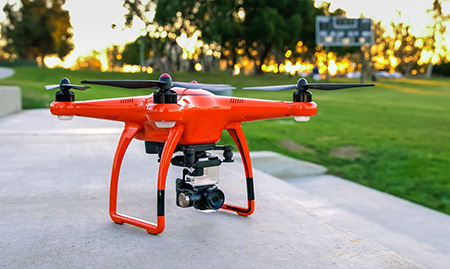
Level-3 hardware acceleration is a game-changer for decoding, encoding, and processing large 4K drone video files on Mac. For example, without hardware acceleration enabled, editing or converting a 30-second 4K HEVC drone clip shot in D-Log mode and 10-bit depth could take ages, with little to no output after an hour of processing. But with GPU acceleration powered by Apple Silicon (M1/M2/M3/M4) or Intel-based Macs via Metal and VideoToolbox frameworks, transcoding DJI Mavic footage from 4K H.264 to 4K HEVC, or converting 4K to 1080p, can be completed up to 8-10X faster compared to software-only processing.
Why is that? DJI drones record videos in MP4 H.264 or H.265 formats, which are highly compressed using inter-frame (GOP-based) encoding. This demands significant floating-point computation to decode and re-encode 4K 2160p videos smoothly. Fortunately, this workload is precisely what Mac’s GPU excels at — whether it’s the thousands of parallel processing cores in Apple Silicon or dedicated VideoToolbox acceleration on Intel Macs. Hardware decoders and encoders handle the heavy lifting efficiently, eliminating playback glitches and massively accelerating video editing and transcoding workflows on macOS.
Top FAQs on Drone Video
1. I have upgraded from 3 Advanced to 4 Pro Plus. Cannot play MP4 files on computer. It will play fine on the DJI controller and the 3 Adv.
A: You may shoot in 4K resolution that your PC does not support. Convert 4K raw file to 1080p will solve the error.
2. Which recording format is best? MOV or MP4?
A: MP4 and MOV are container format and won't affect visual quality if you use the same codec, while H.264 and HEVC will. Basically, H.264 just contains half the info HEVC carries. So choose HEVC when shooting large 4K drone videos, if there is an option.
3. 4K@60FPS DJI drone footage on YouTube stutters terribly. Why is that?
A: The reasons for 4K video playback error can be various:
a. There is no hardware decoder or hardware decoder is not enabled.
b. Do not have enough free RAM.
c. A 4K footage at 30fps is 6.25 MB, theoretically requiring a bandwidth of at least 50 MB/s for smooth streaming, uploading or download.
d. Downloading YouTube drone 4K videos for watching through local drive may solve the problem.
Level-3 Hardware Acceleration Is Needed in Video Surveillance System

Surveillance is widely used in many areas today, covering traffic, public safety, home security, banking, smart home, military, supermarket, school, office building, factory, hospital, etc. The demand of surveillance products is increasing all the time. The trend of surveillance system can be concluded to 4 points: Networked, Intelligent, Popularized, and especially, Toward High Definition/4K. However, along with the improvement of video resolution in video surveillance system, surveillance also faces some technical obstacles now.
The first is bandwidth problem. The bitstream of 1080p/4K video is large and the bandwidth can influence the transmission of 1080p/4K videos. Improving the bandwidth is important. The second is storage issue. Since video surveillance has video playback function, it must store the recorded videos. 1080p/4K surveillance videos can occupy huge storage. For long time video storing, an efficient data storage method is needed.
But most importantly, the challenge lies in video encoding and decoding performance. Decoding and encoding 1080p and especially 4K UHD videos require highly capable video decoders and encoders. On older Macs or systems without hardware acceleration, software-based decoding can heavily burden the CPU, leading to slow and inefficient playback or processing of surveillance videos. While upgrading to newer hardware is one solution, it may increase the overall cost of surveillance setups. That’s why modern macOS systems, especially those powered by Apple Silicon, leverage hardware-accelerated video decoding, processing, and encoding via frameworks like VideoToolbox and Metal, significantly improving performance and energy efficiency for video surveillance workflows.

High-definition video monitoring system with the hardware-acceleration codec can cause the great reduction in CPU utilization (at least reduce 50%) and significant enhance in speed of video decoding and encoding compared with the traditional software codec. According to a research, using software decoder can decode and play 1 channel live 1080p HD surveillance video at most, while applying H.264 hardware-accelerated codec on Intel Quick Sync Video technology can simultaneously decode and play 9 channels 1080p HD surveillance videos while delivering a fast speed.
Besides, 4K resolution and 4K UHD network surveillance cameras/video recorders are becoming increasingly popular. Many surveillance systems now adopt the advanced HEVC (High Efficiency Video Coding/H.265) compression codec, aiming to maintain high-quality 4K video with smaller file sizes, lower bit rates, and reduced bandwidth consumption. Without hardware acceleration technologies, streaming, decoding, playing, compressing, or converting large 4K HEVC/H.265 surveillance videos can be extremely slow — especially when handling multiple channels of 4K HEVC footage. Modern macOS systems with Apple Silicon chips or compatible Intel Macs benefit from Macxvideo AI, which utilizes Apple's VideoToolbox and Metal hardware acceleration frameworks to deliver fast, efficient decoding and encoding for 4K HEVC, H.264, and 1080p HD surveillance video workflows.
To sum up, surveillance system is also catching up with the prevalence of 4K UHD resolution, high-end HEVC/H.265 codec, 4K HEVC cameras/drones/recorders, AI tech, etc. The research and application of hardware acceleration for 4K/1080p video surveillance system is really a great need.
Top FAQs on (4K) Surveillance Video
1. How does hardware acceleration speed surveillance video decoding/playing?
A: On macOS, hardware acceleration technologies such as Apple’s VideoToolbox framework, Metal API, and the built-in video decoding/encoding engines in Apple Silicon chips (M1, M2, M3 series) can significantly boost the decoding and playback speed of surveillance videos. These technologies offload intensive video processing tasks from the CPU to the GPU or dedicated video hardware, ensuring smooth playback and efficient multi-channel 4K/HEVC video handling on Mac devices.
2. What's the advantage of 4K monitoring system?
A: 4K UHD IP cameras offer 4 times the resolution of 1080p HD (1920 x 1080), 9 times of 720p and 27 times of conventional analog cameras (VGA). If cropping a specific area of the 4K video image and magnify it several times, you can still get a very clear image, and this helps focusing on specific monitoring areas greatly.
3. Why 4K network cameras favor HEVC but not H.264 codec?
A: HEVC can encode 4K video at half bit rate and half file size of H.264 while remaining the same quality. Using HEVC codec in 4K monitoring system can reduce the network load greatly and save much storage.
Level-3 Hardware Acceleration Levels Up Everything on (4K) Web Video

Users like videos and Internet provides the best platform for all to watch and share video resources at will. Zenithe (a media agency) reported that global consumers spent about 47 minutes a day watching videos on the web in 2017. And another one Cisco also forecasts 4K video is expected to become the new standard for OTT streaming in the near future.
From Flash to HTML5, along with the adoption of more efficient video compression standards (like VP9/HEVC, and maybe later the AV1) for 4K/HD video and GPU hardware acceleration, modern web browsers are always on the way to distribute video content faster and safer. But smooth 4K/HD web video playback requires more advanced support from both software and hardware. If your working stuff is not qualified, the video may be unwatchable, freeze or get stuttering, buttering, and choppy.
Generally, streaming an HD video requires at least 5 Mbps download speed, and streaming 4K video requires around 25 Mbps. If playback issues occur despite sufficient bandwidth, enabling hardware acceleration is recommended to utilize on-board graphics for faster decoding and smoother streaming of online videos (MP4/WebM/FLV). Hardware acceleration helps render and decode video more quickly across different operating systems.
On macOS, hardware acceleration is primarily supported through Apple's VideoToolbox framework and the Metal API, which leverage the GPU and dedicated video decoding hardware available in Apple Silicon (M1, M2, M3 series) and recent Intel-based Macs. These technologies enable efficient decoding of modern codecs such as H.264, HEVC, and VP9 for smooth playback.

Hardware acceleration, however, is not the jack-of-all-trades. In many cases, after trying several ineffective troubleshooting methods for (4K) video playback problems, users choose to download online (4K) video to local hard drive for watching fluently anywhere. Except those unplayable videos, people also favor downloading funny or fancy video from video sharing sites like YouTube/Dailymotion and social media channels from Facebook, Twitter, Instagram etc., getting new or classic movies and TV series full videos from torrent sites to keep them privately. As a rule, those web videos are welcomed by media players on PC, while iPhone iPad Android and more mobile gadgets reject the esoteric ones ruthlessly, BRRip/HDTS MKV movie, DVDRip XviD AVI torrent, WebM/FLV YouTube video, just to name a few.
In order to liberate (4K/HD) video content for any playback environment, make pain (4K/DSLR/360-degree VR) raw footage into fantastic cinematic movie clip, as well as compressing large or long personal 4K/1080p video filmed by phones, pads, digital (action) cameras and drones for uploading online, sharing via SNS apps etc., video converter and editor are badly needed for all video hobbyists. In view of this, most of today's video editing and converting software (e.g. Adobe Premiere Pro/After Effects, HandBrake) employs hardware acceleration to help handle graphical intensive video processing operations with aplomb, especially on large HD/4K/8K videos.
Top FAQs on Online Video
1. Why 4K video plays abnormally or even crash when hardware acceleration is enabled?
A: It usually happens in situations when your web browser is incompatible with graphics card, graphics driver is outdated or not equal to make use of GPU's capabilities. Further upgrade on browser or driver would fix this conflict.
2. Is hardware acceleration available for streaming all videos faster?
A: It depends. Firstly, only when the codec of online video is supported by hardware decoder from graphic cards can hardware acceleration be fired up to quicken streaming. Then, when the processor is already strong enough to stream video smoothly, it makes no difference to turn on hardware acceleration. Moreover, activating hardware acceleration on low performance computer or video card may cause video slow buffering issue, too.
3. Do all of the hardware accelerated tools for web video work in the same way?
A: They do share the same workflow, but vary from each other because of different hardware acceleration supports and levels.
Bottom Line: Hardware acceleration computing goes mainstream and is wrapped in popular video applications with the purpose of optimizing implementations of multimedia tasks. GPU-accelerated computing facilitates effective performance on 4K HEVC/H.264/VP9 video processing. Hardware acceleration is seemingly a complicated technology for beginners but Macxvideo AI makes everything easy.
How does Macxvideo AI bring hardware acceleration into effect to handle 4K videos?
Macxvideo AI is a hardware-accelerated video transcoder optimized for macOS. It fully leverages GPUs and dedicated video encoding/decoding technologies including Apple Silicon’s VideoToolbox, Intel QSV, NVIDIA NVENC, and AMD VCE to accelerate HEVC/H.264/VP9 encoding, decoding, and processing. Macxvideo AI automatically detects the available GPU hardware and applies hardware acceleration for efficient transcoding. It can smoothly handle intensive 4K video workflows from HD camcorders, GoPro, drones, video surveillance systems, and web sources. With advanced hardware acceleration support, it delivers up to 16x faster transcoding speed while maintaining near-original 4K video quality, achieving an excellent balance between speed, quality, and CPU usage.
In consideration of compatibility and system requirements, it is highly suggested to convert 4K HEVC file to H.264 for smooth playback and editing. (In turn, HEVC has higher compression ratio which can offer smaller size at the same level of quality of H.264. If competent hardware is equipped, to convert 4K H.264 to HEVC can shrink video size and save more space on devices.)
Macxvideo AI is an all-in-one video converter/compressor, video editor, video downloader for both Windows (10) and Mac. Learn how to use it to convert and compress 4K video below.
 Free Download
 Free Download
1. Free download, install and launch this hardware-accelerated 4K video transcoder and click "Video Converter" button on the main UI to enter the converter window.
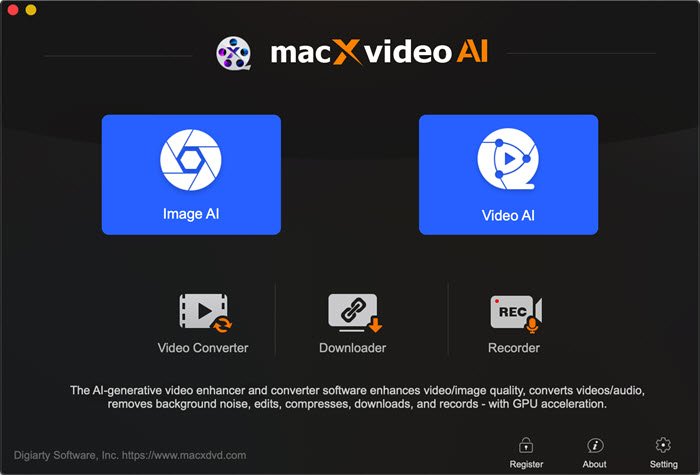
2. Next, click "+Video" on the tool bar to select the source video files from your local computer.
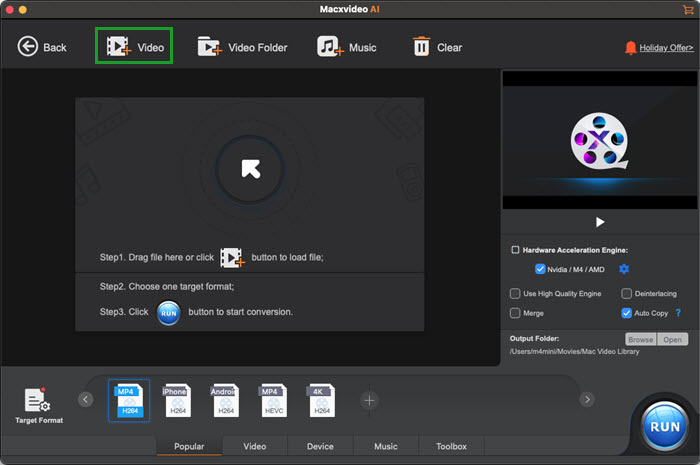
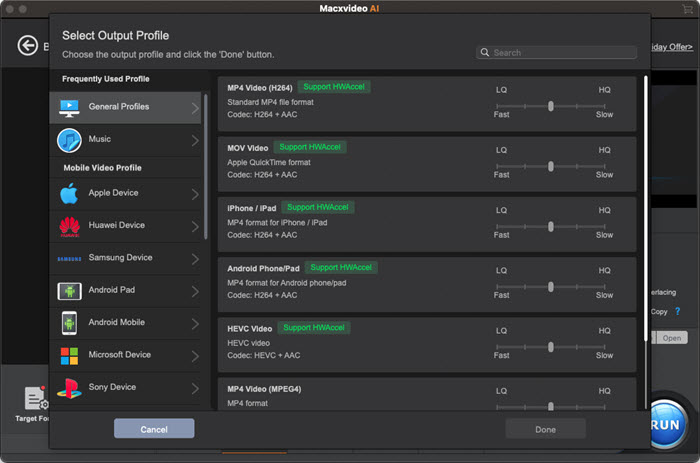
3. Click "Target Format" button, Click: General Profiles > MP4 Video (Codec: H264 + AAC) > OK.
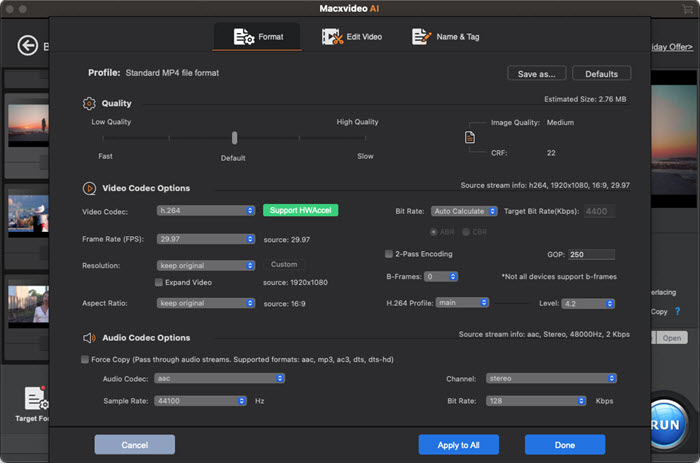
4. Click "Codec Option" icon to access video/audio settings panel. Through adjusting parameters, the 4K footage can be compressed to a smaller size for online sharing.
- Bit rate is the most important factor affecting video size. To downsize a video, lower bit rate is an available way. 20% off is preferred because dramatically reduction will damage definition. It's better to keep frame rate and resolution of original 4K video for the best visual effect on a 4K monitor.
- Frame rate and resolution can affect video size when the footage features variable bit rate. The higher frame rate/resolution the video has, the bigger size it will be. It is advisable to decrease frame rate from 60fps to 30fps, 30fps to 24fps or resolution from 4K to 1920x1080P, 4K to 1280x720P for getting smaller size but minimum quality loss.
- Test Result: 30fps to 24 fps + 4K to 1080P -> 40% off original size
5. Edit video. In the Edit column, you can cut, crop, rotate, flip video, add effects/watermark to video with ease. For instance, Cut option can help set start/end time to cut unwanted parts off the clip and reduce video file size.
Besides, you can click "ToolBox" at the bottom for more video edit fucntions like: Merge, Deshake, Denoise, Trim, Split, Mirror video, convert video to GIF, capture video snapshots, convert 3D video to 2D, correct fisheye lens distortion, etc.
6. Enable hardware acceleration engine and this will quicken the 4K video conversion/compression/resizing speed at most.
7. Click "Browse" to define a new folder to save resulting file.
8. Click "RUN" to start converting and compressing 4K HEVC video with Macxvideo AI.
(>> Detailed User Guide: How to Use Macxvideo AI)
Notice
Minimum System Requirements for 4K Processing on macOS:
• Processor: Apple M1 or later, or Intel Core i7 quad-core or better
• GPU: Apple Silicon integrated GPU (M1/M2/M3/M4) or discrete AMD Radeon Pro 5000 series or later
• Unified Memory (RAM): 8GB or more
• Storage: SSD (solid-state drive) recommended for optimal performance
• Note: macOS does not use separate video RAM; GPU shares unified memory with the system
See Whether Your Computer Is 4K Hardware Acceleration Supportive
| Which GPUs Support NVIDIA-based Hardware Acceleration? | ||
| GPU | NVENC (Encode) | NVDEC (Decode) |
| Kepler | H.264 YUV 4:2:0 | H.264 8-bit |
| Maxwell (Gen 1) | H.264 YUV 4:2:0/4:4:4 H.264 Lossless |
H.264 8-bit |
| Maxwell (Gen 2) | H.264 YUV 4:2:0/4:4:4 H.264 Lossless |
H.264 8-bit |
| Maxwell (GM206) | H.264 YUV 4:2:0/4:4:4 H.264 Lossless HEVC YUV 4:2:0/4:4:4 |
HEVC 10-bit H.264 8-bit VP9 8-bit |
| Pascal | H.264 YUV 4:2:0/4:4:4 H.264 Lossless HEVC 10-bit YUV 4:2:0/4:4:4 HEVC 10-bit Lossless |
HEVC 12-bit H.264 8-bit VP9 12-bit |
| Volta | ||
| Which GPUs Support Intel-based Hardware Acceleration? | ||
| GPU | Intel QSV (Encode) | Intel QSV (Decode) |
| Clarkdale | H.264 | |
| Sandy Bridge | H.264 | H.264 |
| Ivy Bridge | ||
| Broadwell | ||
| Braswell | H.264 | H.264/HEVC |
| Skylake | H.264/HEVC | H.264/HEVC |
| Apollo Lake | H.264/HEVC | H.264/HEVC 10-bit/VP9 |
| Kaby | H.264/HEVC/HEVC 10-bit/VP9 | H.264/HEVC 10-bit/VP9/VP9 10-bit |

The only video converter that peaks level-3 hardware acceleration
- Convert and compress 4K videos fast.
- Convert any video to MP4, MOV, MKV, WMV, AVI etc with 47x real-time faster speed.
- Compress video without losing quality.
- Stabilize, deinterlace, upscale video to cinema-like quality.
 Free Download
 Free Download