If you're a fan of watching movies for personal use, you can easily download your favorites directly to your iPhone. This way, you can savor cinematic experiences on the go, whether you're commuting, waiting in an airport lounge, or relaxing in a cozy cottage. Now, let's check how to download full-length movies to iPhone for free.
You can download movies to an iPhone in several ways:
• Use a video downloader like Macxvideo AI to save movies from websites.
• Download movies directly from streaming apps like Netflix or Amazon Prime.
• Use legal free movie platforms such as Tubi or Crackle.
• Transfer downloaded movies to iPhone via iTunes or Finder.
>> Check Our List of Best 25+ Movie Downloader Apps Updated in 2026.
Table of Contents

Method 1. Free Download Movies to iPhone Using Macxvideo AI
Downloading movies to iPhone iPad, you can't make it happen without a third party video downloader. Needless to look around, the cutting-edge Macxvideo AI (the advanced edition for MacX YouTube Downloader) fits the bill to help download free movies to iPhone from 1000+ sites like YouTube, videopremium, ustream.tv, streamcloud, Bilibili, metacafe, etc. You can directly download movies, shows to iPhone, iPad with 420+ preset profiles, as well as digital formats like MP4, MOV, M4V, H.264, H265, etc. The tool can also screen record movies, gameplays, YouTube videos for legal personal viewing.
How to Free Download Movies to iPhone Using Macxvideo AI?
Step 1.
First free download iPhone movie downloader for Mac or Windows version. Launch the program on your desktop, and click "Downloader" icon on the main interface of Macxvideo AI. Then continue to download movies to iPhone from YouTube.
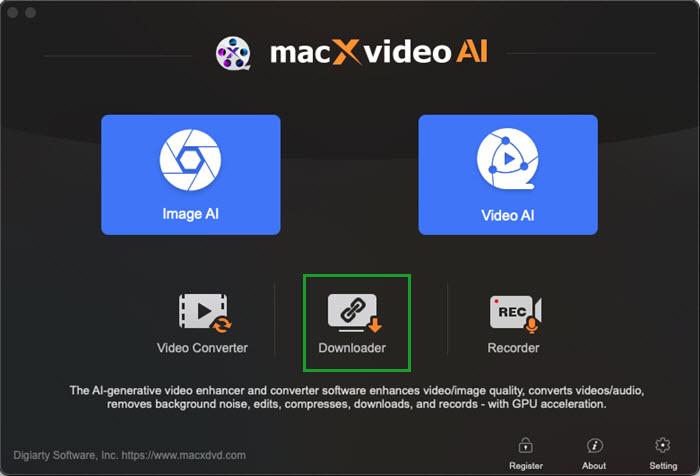
Step 2. Navigate to your target movie download site to copy the URL. Back the program, click on "Paste & Analyze" button to detect the detailed movie information.
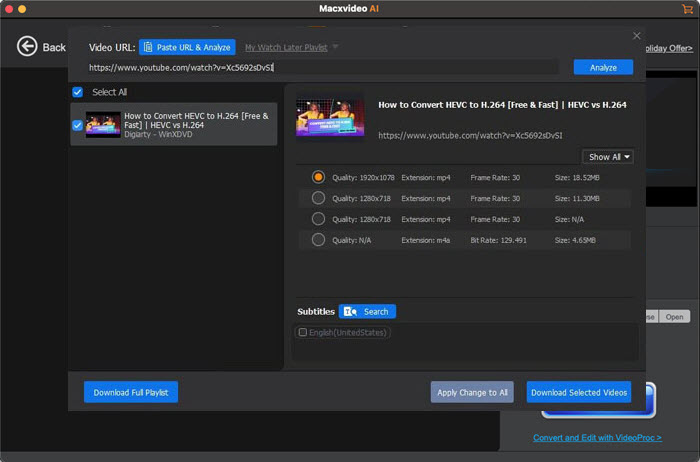
Step 3. The movie info will be loaded in seconds, with video resolution, format, size displayed. You're suggested to choose MP4, 1920 x 1080, or 1280 x 720 for watching on iPhone with the highest quality.
Step 4. Tap "Download Now" button on the lower right corner. The MP4 movies downloading process will be achieved in blazing fast speed, but it depends more on your Internet connection and movie length.
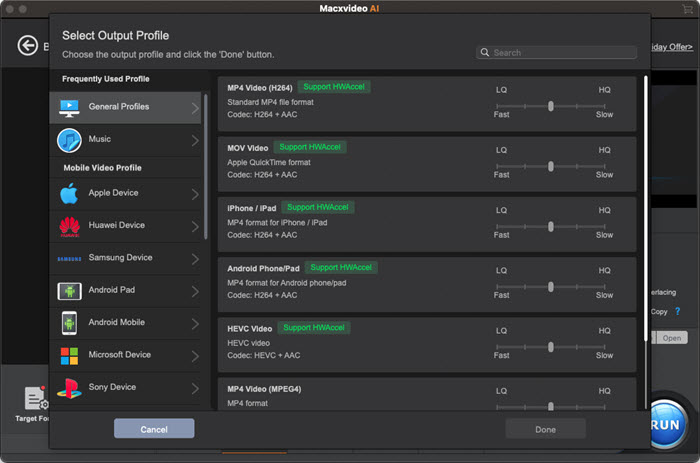
Step 5 (Optional): Convert downloaded MP4 movies to iPhone if needed. There is the possibility that the downloaded MP4 movies fail to play on iPhone, you're recommended to go one step further - convert the MP4 movie to iPhone MP4 with Macxvideo AI.
iPhones support several common video formats, including MP4, MOV, and M4V. Among them, MP4 is generally recommended because it offers good compatibility and efficient compression for most devices. If a downloaded movie is in formats such as MKV, AVI, or FLV, it may not play directly on an iPhone.
Also check >> Best YTD Movie Downloader App List [2026 Update]
Learn More: >> How to Download Age Restricted YouTube Videos

Method 2. Free Download Movies to iPhone via Movie Apps (No Computer)
A slew of free iOS movie apps are out there to let you free watch HD full movie online. See the top free movie apps for iPhone like IMDb, RedBox, Movies Everywhere, etc. But when it comes to use free movie apps to download full movies to iPhone without computer for offline viewing, those mentioned iPhone free movie apps are seemingly eclipsed right away. What movie download apps for iPhone can save free movies to iPhone with totally free? Here let me introduce top three apps to you.
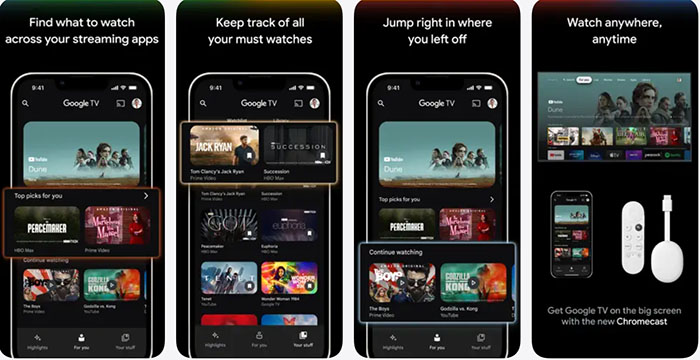
1. Free Download Movies to iPhone with Google TV: Watch Movies & TV App
Google TV: Watch Movies & TV lets you browse and watch movies or TV shows from different streaming services all in one place. Users like that you can keep a watchlist synced across devices and even control your TV with the app. It’s also handy for keeping track of purchased movies. Some people notice glitches, like playback freezing or downloaded movies not showing up, and the interface can be confusing when switching seasons. Overall, it’s useful for discovering content and managing your library, but not perfect for everyday streaming.
Steps to download movies to iPhone from Google TV: Watch Movies & TV app
- Open the Google TV app on your iPhone and sign in with the Google account you use for movies or TV purchases.
- Browse the Home tab or use the search icon to find the movie you want to watch.
- Tap the movie to open its details page. If you haven’t bought or rented it yet, complete the purchase or rental first.
- After the movie appears in your Library, open it and look for the download icon next to the title.
- Tap the download button to save the movie to your device. Once finished, you can watch it later from the Library section even without an internet connection.
2. Download Movies to iPhone Using Apple TV App
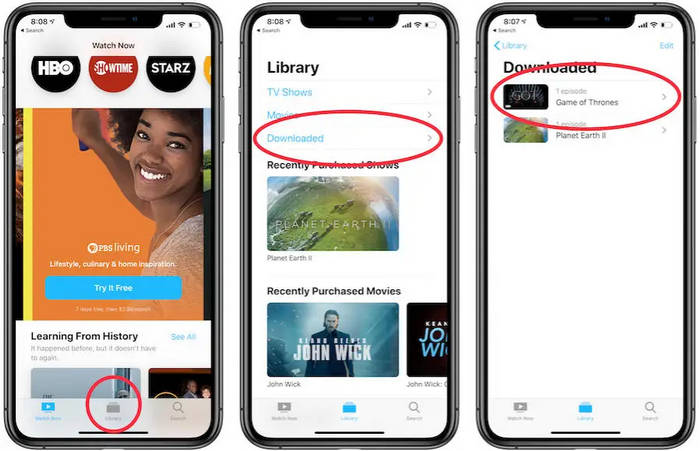
Apple TV offers a treasure trove of free movies, especially if you're an Apple TV+ subscriber. This streaming service provides a curated selection of original films, documentaries, and TV shows, many of which are available to watch for free. One of the best features of Apple TV is the ability to download movies for offline viewing. Perfect for long flights, road trips, or simply when you want to watch a movie without relying on Wi-Fi.
How to Access and Download Free Movies:
- Locate the app on your iPhone's home screen and tap to open it.
- Use the search bar to find free movies. You can search by title, genre, or actor.
- Once you've found a movie you'd like to watch, tap on it to open its details page.
- If the movie is available for free, you'll see a "Play" button. To download the movie for offline viewing, look for a download button (usually a downward-facing arrow). Tap it to start the download.
Remember: The availability of free movies and the download feature may vary depending on your region and Apple TV+ subscription status.
3. How to Download Movies on iPhone from iTunes Store
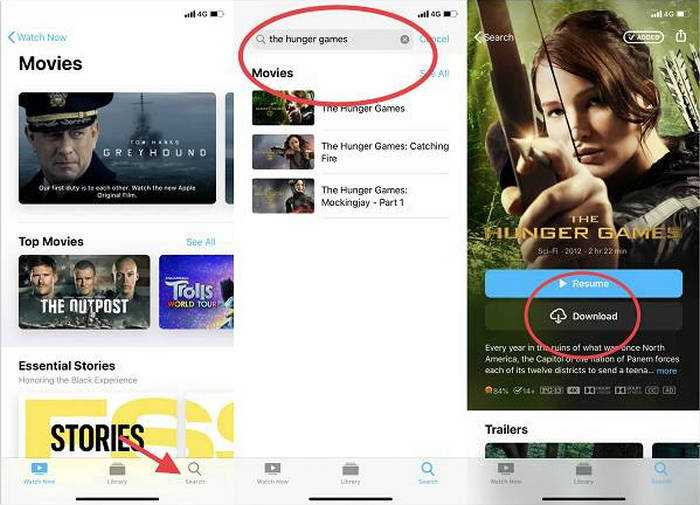
The iTunes Store is a vast digital marketplace where you can rent, purchase and download a wide array of movies. While most content requires payment, keep an eye out for special offers, free movie rentals, and discounted prices. Once you've purchased or rented a movie from the iTunes Store, it's yours to keep. You can download it to your iPhone and watch it offline, perfect for those moments when you're without an internet connection.
How to Download a Movie on iTunes After Rent or Payment:
- Locate the app on your iPhone's home screen and tap to open it.
- Use the search bar to find the movie you want. You can search by title, director, or actor.
- Once you've found the movie, tap on it to view its details, including rental and purchase options.
- Choose your preferred option and follow the on-screen instructions to complete the transaction.
- After the purchase or rental is complete, the movie will automatically download to your iPhone. You can find it in your Purchased Movies section.
4. How to Download Movies on iPhone from Movies Anywhere
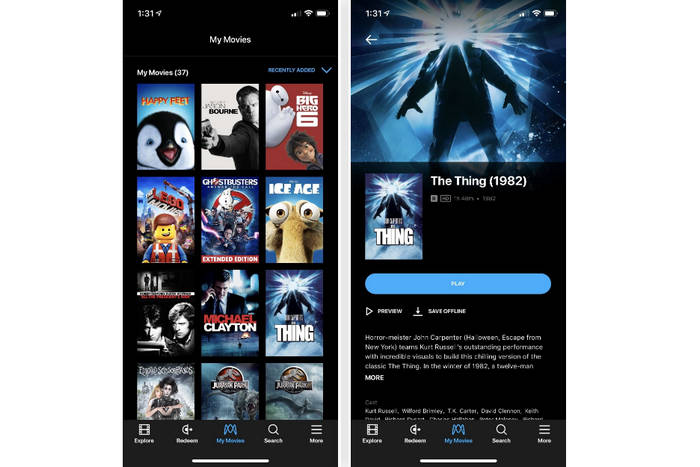
Movies anywhere is a convenient service that lets you centralize your movie collection from various digital stores. By linking your iTunes, Google Play, and other compatible accounts, you can access your purchased movies in one place. One of the best features of movies anywhere is the ability to download movies for offline viewing. This means you can enjoy your favorite films on your iPhone, even when you're not connected to the internet.
How to Download Movies to iPhone from Movies Anywhere:
- Locate the app on your iPhone's home screen and tap to open it.
- Use the search bar to find the movie you want. You can search by title, director, or actor.
- Once you've found the movie, tap on it to view its details, including rental and purchase options.
- Choose your preferred option and follow the on-screen instructions to complete the transaction.
- After the purchase or rental is complete, the movie will automatically download to your iPhone. You can find it in your Purchased Movies section.
Method 3. Free Download Movies to iPhone from Movie Websites
On top of iPhone movie app, there is another option for you to download movies to iPhone without computer. That is from free iPhone movie download sites. The recommendable sites are freemoviedownloads6, divxcrawler.to, downloadfreefullmovie, which enable you to download free full movies to iPhone iPad in 1080P, 4K UHD and provide you with Hollywood/Bollywood movie resources. You can save free movies onto iPhone at blaxing fast speed.
A Recommended List of iPhone Movie Download Sites Free Offline
Below is a table listing free and legal sites to download movies to an iPhone. These platforms are safe, ad-supported, or require a library/university login, ensuring compliance with copyright laws.
| Site Name | Key Features | Why It’s Great |
|---|---|---|
| Crackle | A free, ad-supported platform with a variety of movies and TV shows. | No subscription required; legal and safe. |
| Kanopy | Offers free movies with a library card or university login. | High-quality indie, classic, and educational films. |
| Tubi | A free streaming service with a large library of movies and TV shows. | No subscription required; regularly updated content. |
| Popcornflix | A free platform offering a wide range of movies and TV shows. | Easy-to-use interface; no account needed. |
| Pluto TV | Free streaming service with on-demand movies and live TV channels. | Combines live TV and on-demand content. |
| YouTube (Free Section) | YouTube offers a selection of free, ad-supported movies. | Wide variety of genres; no account needed for most content. |
| Vudu (Free Section) | Vudu’s “Movies On Us” section offers free, ad-supported movies. | High-quality streaming; no subscription required. |
| IMDb TV | Amazon’s free streaming service with movies and TV shows. | Integrated with IMDb; no subscription required. |
Related Search: Learn More Free Movie Download Sites >>
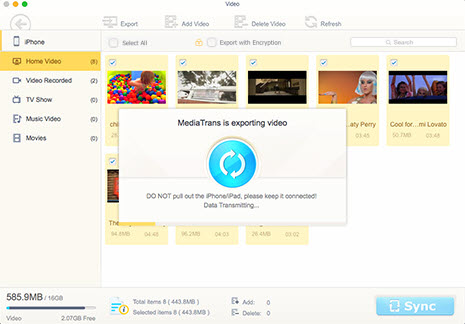
What need reminds is, the free movies downloaded from online movie sites are always formatted in MKV, AVI, FLV, 3GP, VOB, etc. which are unfriendly with your iPhone device. In such case, the world-class MacX MediaTrans comes out to rescue you, helping you transfer videos/movies to iPhone iPad for playing without format issue. No matter the movies are in MKV, AVI or MP4, MOV, you don't need any 3rd party video converter help, thanks to its auto conversion feature.
Method 4. Free Download Movies to iPhone from Netflix
Netflix app for iOS is definitely pleasant to you movie buffs, cuz it creates so many excellent movies and TV episodes by its own, like the most popular TV series HAPPY VALLEY: SEASON 3, A SMALL LIGHT: LIMITED SERIES. Browse and search the movie or TV show on its search bar, and then you can stream HD movies or download movies on iPhone for later watching without a computer. Wanna use Netflix app to download films to iPhone? Here's how to download movies to iPhone from Netflix.
Step 1. Run Netflix app on your iPhone. If it hasn't been installed yet, access to Apple App store to get it installed.
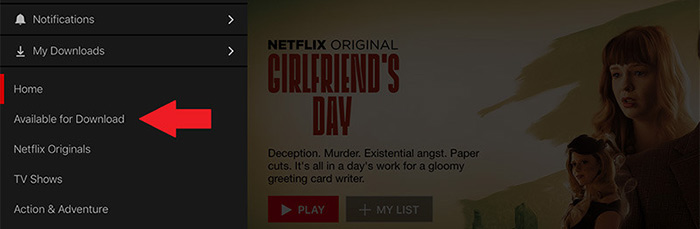
Step 2. Click on "Available for Download". Find your favorite movies thereon. They're classified by genres like Netflix Originals, Hollywood, Nollywood, TV Sci-Fi & Horror, Comedies, Anime, etc.
Step 3. Tap the "download" button next to your movie or TV show resource (an arrow icon) and then the Netflix app for iOS will handle the rest of jobs. Find your downloaded movie or TV series on "Downloads" folder after it's done. Now, you download movies for iPhone from Netflix for offline watching.
Note: if your iPhone has no free mobile data for movie downloads, go to Settings on Netflix app and enable "Wi-Fi Only" option under "Downloads" section.
FAQs about Downloading Movies to iPhone
1. Can you download movies directly to an iPhone?
Yes. Apps like Netflix, Amazon Prime Video, and Disney+ allow users to download movies for offline viewing directly within the app. The downloaded movies stay inside the app and cannot be accessed through the iPhone’s normal video library, ensuring content protection and licensing compliance.
2. Can I download movies to iPhone for free legally?
Yes, using legitimate iPhone movie download sites free offline. Services like Tubi, Pluto TV, Crackle, and YouTube’s free movies section offer ad-supported movies that can be streamed or downloaded legally. Avoid sites offering pirated content to stay safe and respect copyright laws.
3. Why can’t I download some movies from streaming apps?
Not all titles support offline downloads due to licensing agreements. Some movies and TV shows can only be streamed online. If a download button does not appear, that content is restricted from offline access by the platform.
4. What video format works best for movies on iPhone?
iPhones support MP4, MOV, and M4V natively. MP4 is recommended for best compatibility. Movies in MKV, AVI, or FLV formats may need conversion using a tool like Macxvideo AI before transferring to the iPhone to ensure smooth playback.
5. I downloaded a movie but it won’t play—what should I do?
If a downloaded movie won’t play, it may be in an unsupported format. iPhones play MP4, MOV, and M4V natively. Use a converter to change MKV or AVI files to MP4 before transferring them, or play them with an app like VLC that supports more formats.